Shopify Cost of Goods Sold Report: How to Track Real Profit Margins

Shopify COGS Report: How to Understand Real Profit Margins
Sales can look healthy in Shopify while profit stays thin.
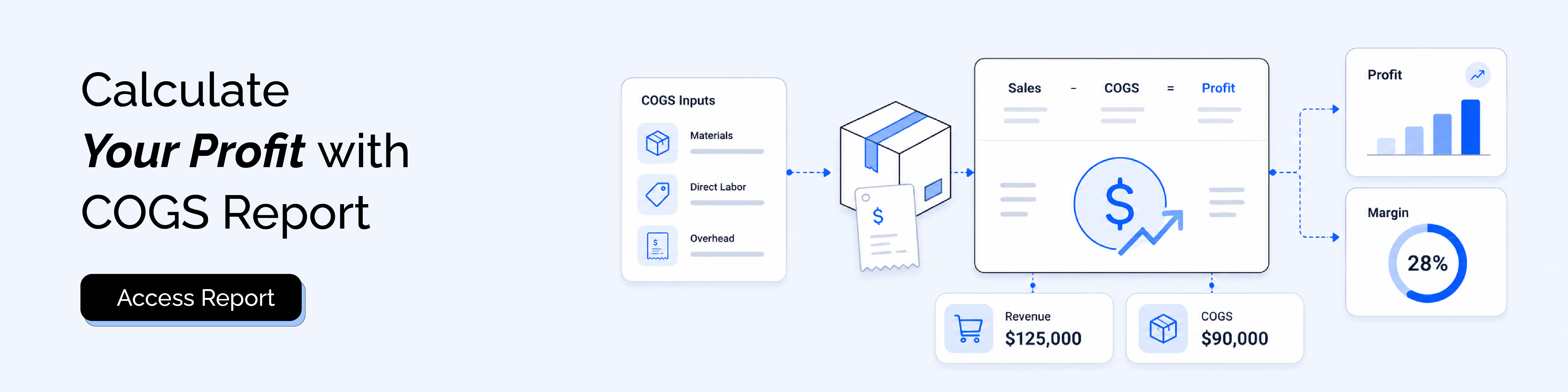
That usually happens when merchants track revenue closely but do not connect it to cost of goods sold, or COGS. COGS is one of the numbers that determines whether a product is actually making money or just generating activity. In Shopify, native profit reporting depends heavily on product cost being set correctly, and the resulting view is strongest for gross profit and gross margin, not full business-wide net profit.
This is why a COGS report matters. It helps you move from “How much did we sell?” to “How much did we really keep after product cost?” Once that is clear, pricing, discounting, inventory planning, and margin analysis get much more reliable.
Why COGS matters more than revenue in Shopify
Revenue tells you demand. COGS tells you what that demand cost you.
A product can produce strong sales and still be a weak business driver if the direct cost is too high. That is why merchants who rely only on sales totals often overestimate product performance. Gross profit margin exists to correct that blind spot by showing how much is left after direct product cost is taken out. Shopify’s profit reports are built around exactly that idea: net sales, cost of goods sold, gross profit, and gross margin.
A simple example makes this clear. If Product A sells $10,000 and Product B sells $7,000, Product A looks stronger on revenue. But if Product A has a 15% gross margin and Product B has a 45% gross margin, Product B may be the healthier product line. Revenue shows size. Margin shows efficiency.
Why Shopify’s native COGS and profit view still feels incomplete
Shopify does have native profit reporting. That part should be stated clearly.
Merchants can access profit reports in Shopify’s Reports area, and those reports calculate gross profit and gross margin when cost per item is recorded for products or variants. Discounts and refunds also affect the gross margin shown in those reports because the calculation is based on net sales, not full-price sales.
Where the native view starts to feel incomplete is when merchants want a broader profitability picture. Product cost is only one layer of profit analysis. Ad spend, app costs, shipping absorbed by the business, transaction fees, payroll, and other operating expenses do not automatically become part of one complete native net-profit view. So Shopify gives a solid gross-profit foundation, but not a full all-cost profitability model out of the box.
What counts as COGS in Shopify
In Shopify reporting, COGS starts with the cost per item recorded for a product or variant.
For merchants who buy finished goods, that usually means the amount paid to acquire the product. For merchants who make their own products, it can reflect material and labor costs used to produce the item. The key point is that COGS is about the direct cost of the item sold, not every business expense around the sale.
What is usually included
- Direct product cost
- Raw materials, if you manufacture the item
- Direct production labor, if you make the product
- Product-level cost assigned to each variant
What is usually not included
- Ad spend
- Shopify subscription fees
- Most app costs
- General payroll
- Rent
- Broad operating overhead
Some merchants also want to include packaging or certain fulfillment-related costs in “true product profitability.” That can be useful internally, but it is not the same thing as Shopify’s native cost-per-item based COGS logic. Keeping that distinction clean makes your reporting easier to interpret.
Where Shopify shows COGS and profit natively
The native path is straightforward:
Analytics → Reports → Profit reports
From there, Shopify can show profit-related views built around product cost, net sales, gross profit, and gross margin. Shopify reports, includes all reports and custom report explorations, on the Basic plan and above.
There is one setup detail that matters a lot: if a product has variants, each variant needs its own cost set correctly. If cost is missing or incomplete, profit reporting becomes partial or misleading.
COGS vs revenue vs profit: What each number actually tells you
The most important takeaway is simple: COGS helps explain gross profit, not full net profit by itself.
Gross profit margin vs net profit: The difference that changes decisions
This is the distinction that confuses merchants most often.
Gross profit margin tells you how much of your net sales is left after COGS. Shopify’s native profit reports are built around this. Shopify’s field definitions also anchor gross margin to gross profit ÷ net sales.
Net profit goes much further. It subtracts not just product cost, but all meaningful business expenses. That is why gross margin can look healthy while net profit is still weak. A store may have excellent product economics but poor overall profitability because acquisition costs, returns, or operating expenses are too high.
A practical way to think about it:
- Gross profit margin answers: Are we pricing and selling products well?
- Net profit answers: Is the business actually making money after everything else?
For a deeper look at the difference, read our guide on gross profit vs net profit in Shopify reporting.
How to calculate profit using COGS
The core formulas are simple.
Gross profit
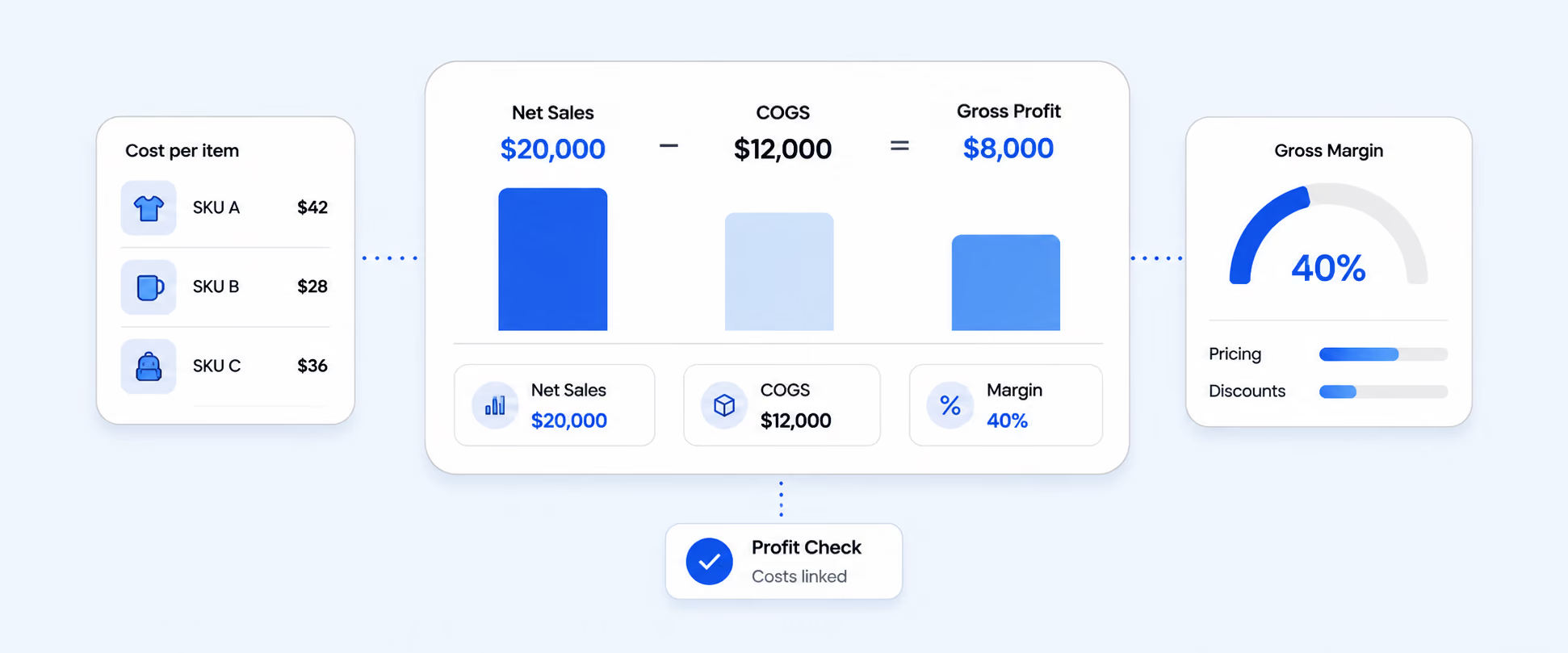
Gross Profit = Net Sales − COGS
Gross profit margin
Gross Profit Margin = (Net Sales − COGS) ÷ Net Sales × 100
Net Profit
Shopify Cost of Goods Sold Report: How to Track Real Profit Margins
That means the store kept $0.40 of gross profit for every $1.00 in net sales before broader operating costs are considered.
If the business then spends another $6,075 on ads, apps, shipping absorbed, and overhead, the net profit drops to $1,925. This is exactly why COGS is essential but still only one part of profitability.
Why your Shopify profit numbers do not match
This is one of the most common merchant frustrations, and it usually comes down to a few predictable issues.
Missing or incomplete cost data
If cost per item is not entered correctly, Shopify cannot calculate gross profit accurately. This gets even more important with variants, because each variant needs its own cost value.
Discounts and refunds
Gross margin in Shopify’s profit reports is based on net sales, not full list price. So discounts and refunds lower the margin result even when product cost stayed the same.
Revenue-focused reports
Merchants often compare revenue reports to profit reports and expect the numbers to align directly. They do not, because they are measuring different things.
Timing differences
Cost setup changes can affect future reporting, and some merchants discover that the cost data they need was not in place when earlier sales happened. That makes historical interpretation harder.
For a wider look at mismatched figures across Shopify reports, see why report numbers do not match.
How to track COGS and profit more accurately in Shopify
Start with clean product cost data. Make sure cost per item is set correctly at the variant level, not just the product level when variants exist. Then review Shopify’s native profit reports to understand gross profit and gross margin by product or period. After that, expand the view by layering in the costs that native profit reports do not automatically combine into one complete picture, such as ad spend, app fees, shipping absorbed, or other operating expenses.
This is where Report Pundit becomes useful. It gives merchants a way to build COGS and profitability reporting that is more operational and more flexible than the default native view. That can include sales-focused COGS reporting, monthly gross profit margin tracking, profitability by product, variant, collection, or location, and scheduled exports for finance or ops teams. Instead of bouncing between reports and spreadsheets, merchants can surface gross profit, gross margin, discounts, returns, taxes, and related performance in one reporting workflow.
It is also useful for questions that come up in real stores, such as:
- Daily sales by POS location with gross profit, discounts, returns, and taxes
- Monthly gross profit margin reporting
- Profitability by channel or product group
- Inventory cost and projected margin views for unsold products, depending on the report setup
Closing
COGS is one of the numbers that separates impressive sales from real profitability.
If you understand product cost clearly, Shopify’s native profit reports can give you a solid gross-margin foundation. But if you want a fuller view of profitability across products, variants, locations, and time periods, you usually need a reporting setup that goes beyond native gross profit alone.
That is where Report Pundit fits well. It helps turn COGS, margin, and related cost signals into reporting that is easier to use for pricing, merchandising, finance, and day-to-day decision-making.
FAQ
What is the cost of goods sold in Shopify?
It is the direct cost tied to the products you sold, usually based on the cost per item recorded for each product or variant. Shopify uses this to calculate gross profit and gross margin in native profit reports.
Does Shopify calculate COGS automatically?
Shopify can calculate profit metrics only when cost per item is entered. It does not infer accurate product cost on its own if that field is missing or incomplete.
Why is my Shopify profit not accurate?
Common reasons include missing variant cost data, confusing revenue with profit, and forgetting that discounts and refunds reduce net sales and margin.
How do I get a COGS report in Shopify?
Go to Analytics → Reports → Profit reports. Make sure your products or variants have cost per item recorded, otherwise the output will be incomplete.
What is the difference between COGS and profit?
COGS is the direct cost of items sold. Profit is what remains after subtracting costs. Gross profit subtracts COGS only. Net profit subtracts all meaningful business costs.

5.0 ( 2000+ Reviews)