Export Shopify Products, Collections, and Images to Spreadsheet

How to export products from Shopify (quick answer)
To export your products from Shopify:
- From your Shopify admin, go to Products.
- Click Export in the top right.
- Choose your scope: current page, all products, selected products, or filtered results.
- Pick a format (CSV for Excel, Numbers, or other spreadsheet programs is the safer choice).
- Click Export products. Small exports download instantly; larger ones are emailed to you.
This covers a basic product export. If you also need collection data, clean image handling, or a spreadsheet built for review rather than re-import, native export has real gaps. The rest of this guide covers those.
For the broader picture, see our full guide on exporting data from Shopify (orders, customers, inventory).w.
Export Shopify Products, Collections, and Images Into a Clean Spreadsheet
If all you need is a quick backup, Shopify’s native product export is fine. You can export products to CSV from the Products page, and Shopify includes core product data such as handles, titles, variants, option values, and image source URLs.
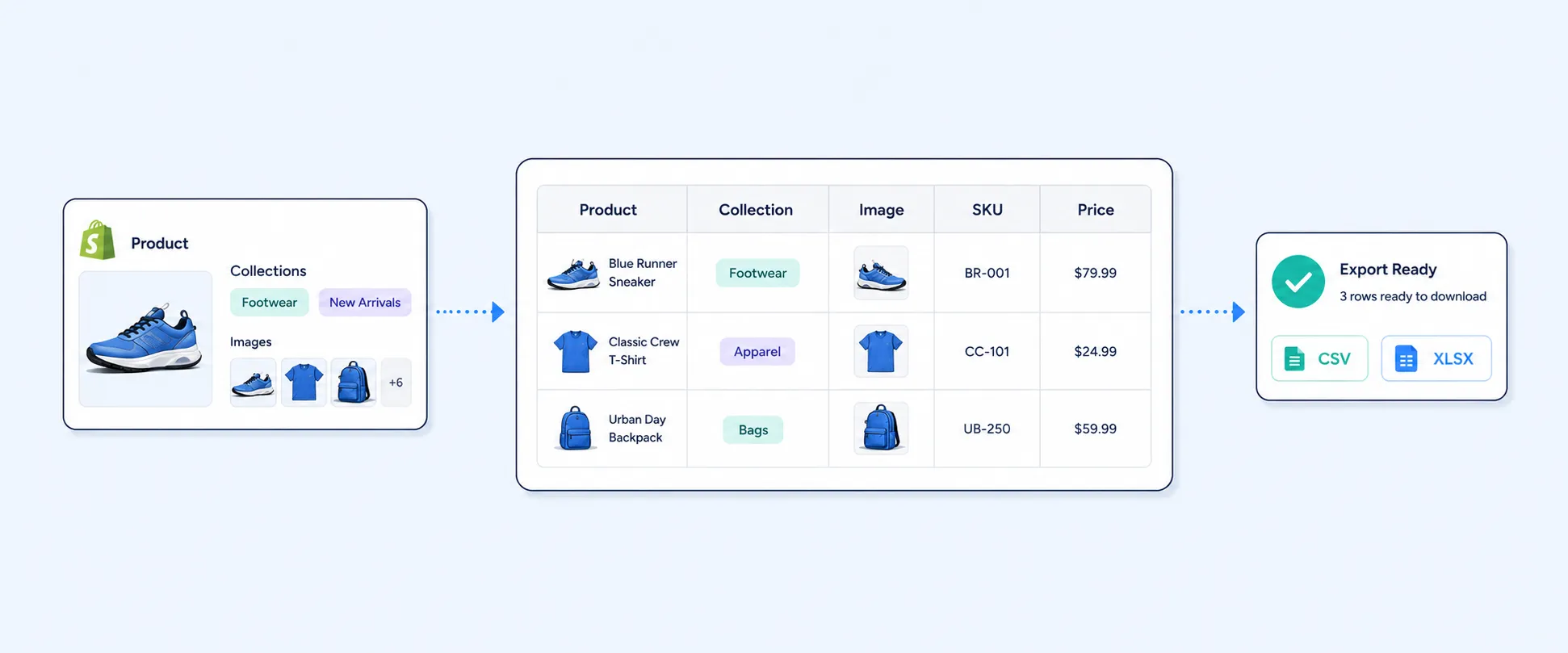
But most merchants asking for a “clean spreadsheet” want more than a raw backup file. They want product titles, variants, image URLs, inventory, product status, tags, and collection membership in a format that is actually usable for merchandising, marketplace uploads, catalog reviews, and internal sharing.
That is where the gap shows up. Shopify lets you export products. It does not give you a dedicated collections export, and product images in CSV exports follow Shopify’s product CSV structure rather than a neat spreadsheet layout built for analysis.
This guide shows what Shopify can export natively, what gets messy when images and collections are involved, and when a custom reporting workflow becomes the more practical option.
What Shopify can export natively
Shopify’s official export flow for products is simple:
Products → Export
From there, you can export:
- the current page of products
- all products
- selected products
- products matching your filters
That native product CSV is useful for:
- backups
- bulk editing in spreadsheets
- migration between systems
- basic catalog cleanup
Shopify’s product CSV also supports product details, variants, and image references. Shopify’s CSV documentation explains that product data is exported in a specific row-based structure and that CSV is the standard format Shopify uses for large product transfers.
So the short answer is yes, you can export Shopify products and image URLs. But the real question is whether that CSV looks the way your team actually needs it to look.
Why Shopify’s product export often feels messy in spreadsheets
The native export is designed first for Shopify data transfer, not for human-friendly catalog review.
That distinction matters because products, variants, and images do not map cleanly into a single “one row = one product” spreadsheet format once the catalog gets more detailed. Shopify’s CSV structure uses repeated rows when needed to represent additional images and variant data. Community discussions around multiple-image CSV imports and exports confirm that Shopify handles additional images on separate rows tied to the same product handle, not as a neat bundle of image columns in one row.
That means a merchant exporting products for a merchandising team often runs into problems like:
- the same product appearing across multiple rows
- image URLs listed as links instead of visible images
- variant data mixed into the same file structure
- more cleanup than expected before the file is presentation-ready
This is not Shopify doing anything “wrong.” It is just a CSV built for system logic instead of reporting convenience.
What happens when you export product images from Shopify
Shopify’s product export can include image source URLs, but that is different from exporting a polished image catalog.
In the native CSV, images are represented as URLs, not embedded thumbnails. Shopify’s CSV documentation and community examples both support this pattern. Additional images are handled with repeated rows tied to the same product handle, and merchants often use the Image Src field when working with product imports or image-related exports.
So if your goal is:
- “Give me all my product images”
- “Show me every variant and all associated image URLs in one spreadsheet”
- “Put multiple image links into separate columns”
then Shopify’s default product export usually needs post-processing in Excel or Google Sheets.
That is why “export product images from Shopify” and “export clean catalog spreadsheet” are related, but not the same task.
The image problem gets worse with variants
Variants are where most product exports stop feeling simple.
Shopify treats variants as distinct option combinations, and many product-level details need to be handled at the variant level for price, inventory, SKU, and related fields. Shopify’s own product documentation explains that once a product has variants, key settings such as price and inventory are managed per variant.
Now combine that with images.
A merchant might expect one clean row containing:
- Product title
- Variant title
- SKU
- Price
- Inventory
- Main image
- Secondary image 1
- Secondary image 2
- Collection names
But Shopify’s native CSV is not structured around that reporting layout. It is structured around import/export compatibility.
So when a product has several variants and several images, the export quickly becomes harder to review without cleanup.
Where Shopify’s admin is useful before exporting
Before exporting, Shopify does give you useful filtering tools in the Products area.
You can filter the product list and export only the products matching your filters. Shopify documents filtering on the Products page and also notes that splitting large exports into smaller filtered batches is the recommended approach if the full export is too large.
This is especially helpful when you want to export:
- only active products
- only products from a specific vendor
- only products with certain tags
- only filtered subsets of the catalog
Shopify also supports tag-based filtering on the Products page, which is useful for structured catalog exports.
This does not solve the spreadsheet-layout problem, but it does make the raw export more manageable.
Can you filter Shopify products with no images?
Yes, but not as a native “no image” export report in the way merchants often expect.
Shopify’s product list supports filtering, and the admin has flexible search and filter tools for product views. However, Shopify’s official product filtering docs describe general product filters rather than a built-in dedicated export specifically for “products without images.”
In practice, merchants often solve this in one of two ways:
- use product list filters and saved views to narrow down likely problem products
- export the products and identify blank image fields in the spreadsheet
So the operational answer is yes, you can identify products missing images, but Shopify does not present this as a polished image-audit report out of the box.
Collections are the biggest native export gap
This is where many merchants get stuck.
Shopify does not offer a built-in collections-only CSV export in the same way it offers product exports. Community guidance from Shopify forums consistently points this out, and merchants looking for a direct “Export Collections” button in admin usually find there is none.
Shopify provides collection data in reports, but it mixes both manual and smart collections, and this information is available only in sales and inventory reports. This means that collections are reported only for sold items and current product inventory.
Shopify does not provide collection-oriented reports, where each collection contains a specific set of products and variants. Reports that focus on collections and their associated products or variants are largely missing in Shopify.
A single product can belong to multiple collections, and a collection can contain multiple products, and vice versa.
That means if you want a spreadsheet of:
- all collections
- collection type
- collection handle
- product membership
- smart vs manual collection logic
- collection image or SEO details
Shopify does not provide that natively as a simple admin export.
You can still work around it, but it is a workaround, not a clean export feature.
Manual vs smart collections matter more than most teams realize
Shopify collections come in two broad types:
- manual collections, where products are added manually
- smart collections, where products are included automatically based on conditions
That distinction matters operationally because a collection export is often not just about “which products are in this collection today.” It is also about understanding whether the collection is curated or rule-based.
Shopify’s native product export does not function like a dedicated collection reporting tool. So while you can often infer collection membership or use filtered exports around collection context, Shopify does not provide a clean native collection dataset for reporting the way many catalog teams expect.
The practical native workflow if you need a spreadsheet today
If you want the best possible result using only Shopify’s native tools, this is the most realistic workflow:
1) Export products from the Products page
Use Products → Export and choose all, selected, or filtered products.
2) Filter before export whenever possible
Apply vendor, tag, status, or other product filters first so the export stays focused and easier to clean up.
3) Use the CSV as a source file, not the final spreadsheet
Expect to reorganize:
- repeated image rows
- repeated variant rows
- image URL columns
- option values
4) Audit blank or weak image data after export
Use spreadsheet filters to find products with missing image fields or inconsistent image coverage.
5) Handle collections separately
If you need real collection reporting, accept that Shopify does not provide a direct collections CSV export and plan for either manual work, API-based extraction, or a reporting tool.
What merchants usually want when they say “clean spreadsheet”
They usually want one of these:
A catalog sheet for internal review
A marketplace upload sheet with image URLs and options
A merchandising audit by product status, inventory, and image coverage
A collection-level product sheet
A vendor-ready spreadsheet with variants, SKUs, barcodes, and inventory
And in most of those use cases, the real requirement is not “Can Shopify export this?”
The real requirement is: “Can I get this into a clean, readable, operational file without rebuilding it every time?”
That is the difference between data export and reporting.
When an exporting tool becomes the better option
Once you need a spreadsheet that is shaped for real use, not just raw transfer, Shopify’s native CSV often stops being enough.
This usually happens when you want:
- product and variant details in a cleaner column layout
- image URLs separated into usable columns
- collection membership shown alongside product data
- tags, inventory, pricing, and other attributes in one export
- recurring exports for teams without manual cleanup every time
That is where an exporting tool becomes the better option.
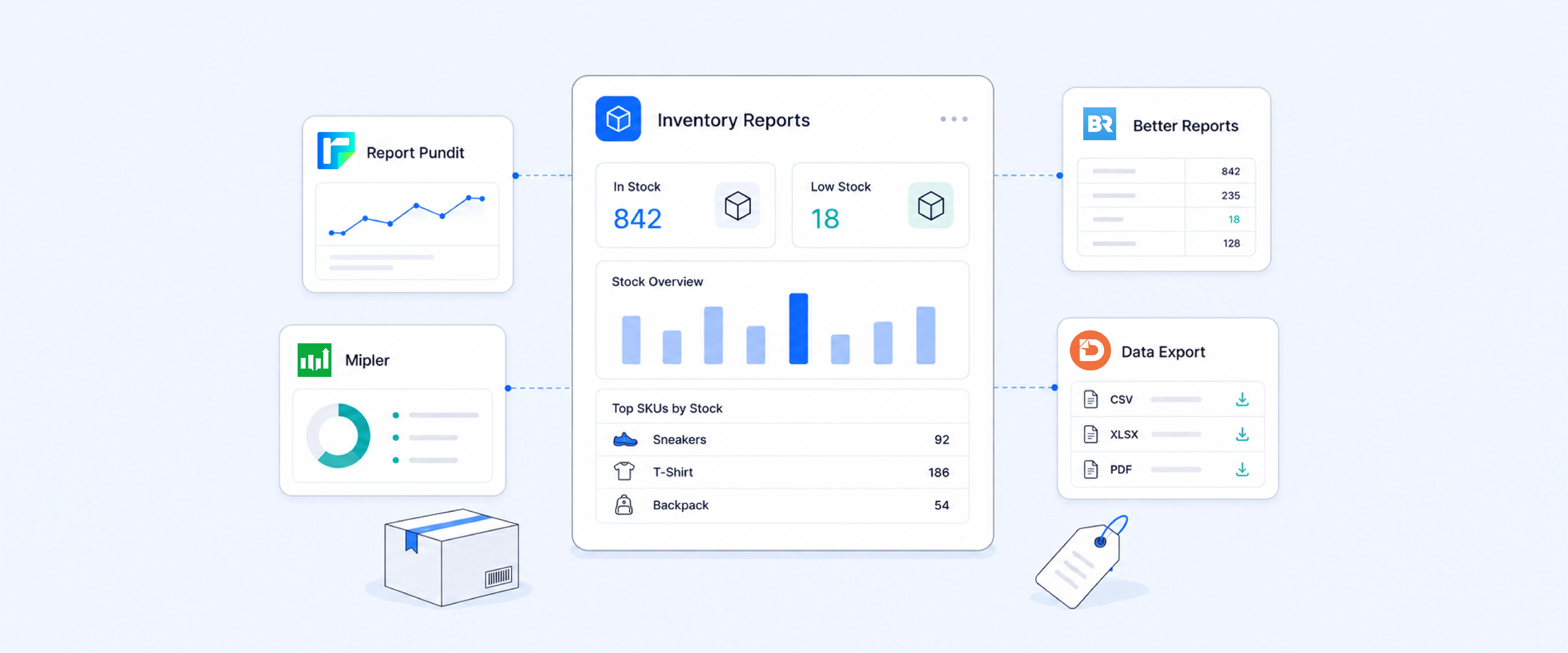
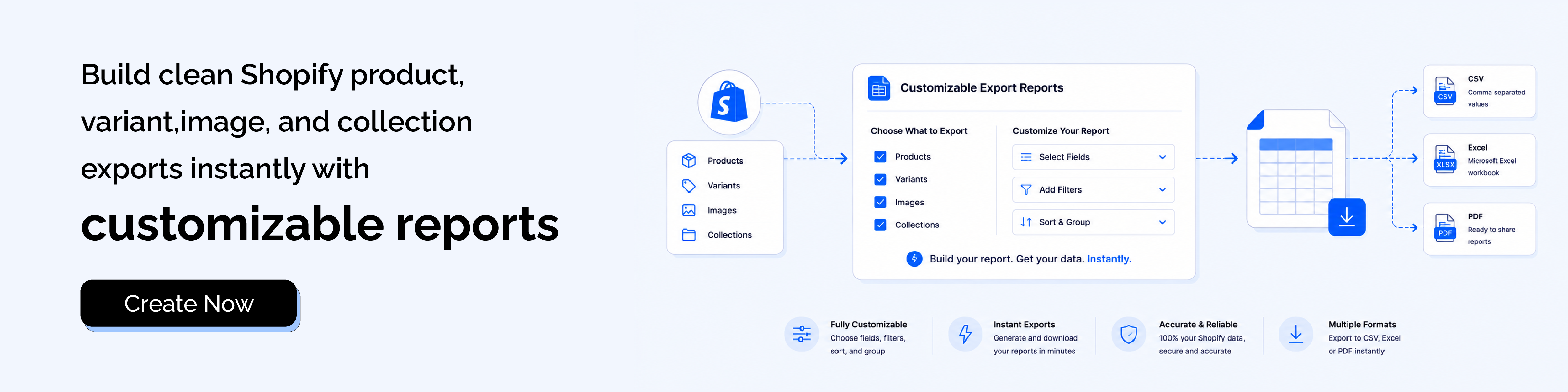
For merchants who need a working spreadsheet for merchandising, operations, marketplace listings, or internal reviews, Report Pundit can help by exporting product, variant, image, and collection-related data in a more usable format. Instead of relying on Shopify’s raw CSV structure alone, you can build exports that are easier to review, share, and reuse across teams.
The value here is not just getting the data out of Shopify. It is getting it out in a format that saves time after export.
A better way to think about product, image, and collection exports
If you are moving data between systems, Shopify’s native product CSV is usually the right tool for the job. (help.shopify.com)
If you are trying to review catalog data, prepare marketplace sheets, check image coverage, or share product lists across teams, the challenge is different. At that point, the issue is no longer just exporting data. It is exporting it in a format that is actually usable.
That is why merchants often feel frustrated by the default export even though Shopify technically includes the data. The problem is not access. The problem is structure.
Once images, variants, and collections enter the picture, having the data in the right shape matters as much as having the data itself.
FAQ
Can Shopify export product images?
Shopify can export product image URLs through the product CSV, but it does not export a polished image catalog with embedded thumbnails by default. Image data is handled through CSV fields such as image source URLs.
Can Shopify export products with variants?
Yes. Shopify’s product CSV includes product and variant-related data, and Shopify’s product model treats key details like price and inventory at the variant level when variants exist.
Can I export only filtered products from Shopify?
Yes. Shopify lets you filter the Products page first and then export products matching your filters.
Can Shopify export collections to CSV?
Not as a native collections-only admin export. Shopify community guidance consistently notes that Shopify does not provide a built-in collections CSV export the way it does for products.
Why do product images appear across multiple rows in Shopify CSV?
Because Shopify’s CSV structure is designed for product import/export logic, and additional images are commonly represented on repeated rows tied to the same product handle rather than grouped into a single row of image columns.
Can I export products without images from Shopify?
You can identify and work with such products using Shopify’s product filters and spreadsheet cleanup after export, but Shopify does not offer a polished native “products without images” export report.
Closing
Shopify makes it easy to export products. It does not make it equally easy to turn products, variants, image URLs, and collections into a spreadsheet that feels clean and ready for business use.
If your goal is a basic product backup, Shopify’s native CSV works well. If your goal is a usable export with images, options, variants, and collection context in one place, an export-focused workflow is usually the better path. That is where Report Pundit can help by giving you more flexible export options for the catalog data your team actually needs.

5.0 ( 2000+ Reviews)