
How to Identify Unsold Products in Shopify and Export Zero Sales SKUs

.svg)
.svg)
.svg)
How can a product be considered trending if it has zero sales in the last 30 days? Social media engagement might create buzz, but real performance is measured by actual revenue. If a SKU has no sales in 30 or 90 days, it is blocking cash flow, occupying storage space, and slowing down inventory turnover. Unsold products quietly drain profits while making your catalog look healthier than it is.
Trends often begin with attention and interest before turning into purchases, but relying only on engagement can be misleading. That is why focusing on products with genuine recent sales is a more reliable way to measure demand. In this post, you will learn how to find unsold products in Shopify and export zero-sales items in minutes so you can make smarter inventory and marketing decisions.
Why You Need to Track Unsold Products
Unsold products, or dead stock, can confuse your business if left unmanaged. They occupy valuable warehouse space and misleading inventory metrics, making profitability and inventory performance appear better than they actually are. If you don’t actively monitor what isn’t selling, you’re basically letting money sit on shelves.
Key reasons to track unsold products:
- Dead stock takes up warehouse space, increasing storage expenses.
- Clearing unsold items makes room for faster-moving, profitable products.
- Unsold products can skew inventory turnover and profitability metrics.
- Identify slow-moving items for discounts or promotional sales.
- Spot potential returns or renegotiate terms with suppliers.
- Prune underperforming SKUs to focus on high-demand products.
- Better visibility allows smarter purchasing and stocking decisions.
How Your Inventory Sales Cycle Impacts Business Performance
Your inventory sales cycle tracks how products move from purchase to sale, and understanding it is essential for controlling costs, improving cash flow, and meeting customer demand. By analyzing historical sales data, you can identify demand patterns, forecast future sales, and make smarter stocking decisions.
The inventory sales cycle covers every stage of a product’s journey, including procurement, receiving, storage, inventory tracking, sales, delivery, reordering, and post-sale feedback. Each stage directly affects profitability, stock availability, and operational efficiency.
Monitoring this cycle helps you optimize restocking, reduce dead stock, improve inventory turnover, and plan purchases more accurately. Using inventory analytics such as sell-through rates and product performance metrics ensures you maintain the right stock levels while avoiding overstocking or running out of stock.
Shopify's Native Report for Zero-Sales Tracking
If you rely on Shopify’s built-in analytics, you will notice a major limitation. Shopify provides reports on products and variants that have recorded sales, but it keeps sales and inventory data separate. As a result, there is no straightforward way to identify SKUs that have never sold, creating a blind spot in your inventory and performance analysis. In contrast, third-party tools can combine full product and sales information in a single view, making it much easier to spot unsold items and make data-driven decisions.
Shopify’s standard reports, such as Sales by Product and Sales Over Time, focus entirely on items that generated revenue. However, if a product or variant has never appeared in an order, it typically:
- Does not appear in sales reports
- Gets excluded from default analytics dashboards
- Remains invisible in performance reviews
As there is no built-in filter for zero-sales products, you are forced to export product lists and sales data, then manually cross-reference them. While this might work for smaller catalogs, it becomes unreliable and time-consuming as your store grows, especially if:
- Your catalog exceeds 500 SKUs
- You manage multiple variants per product
- Variant IDs do not match cleanly across export
- You need date range filtering, for example, identifying products with no sales in the last 90 days
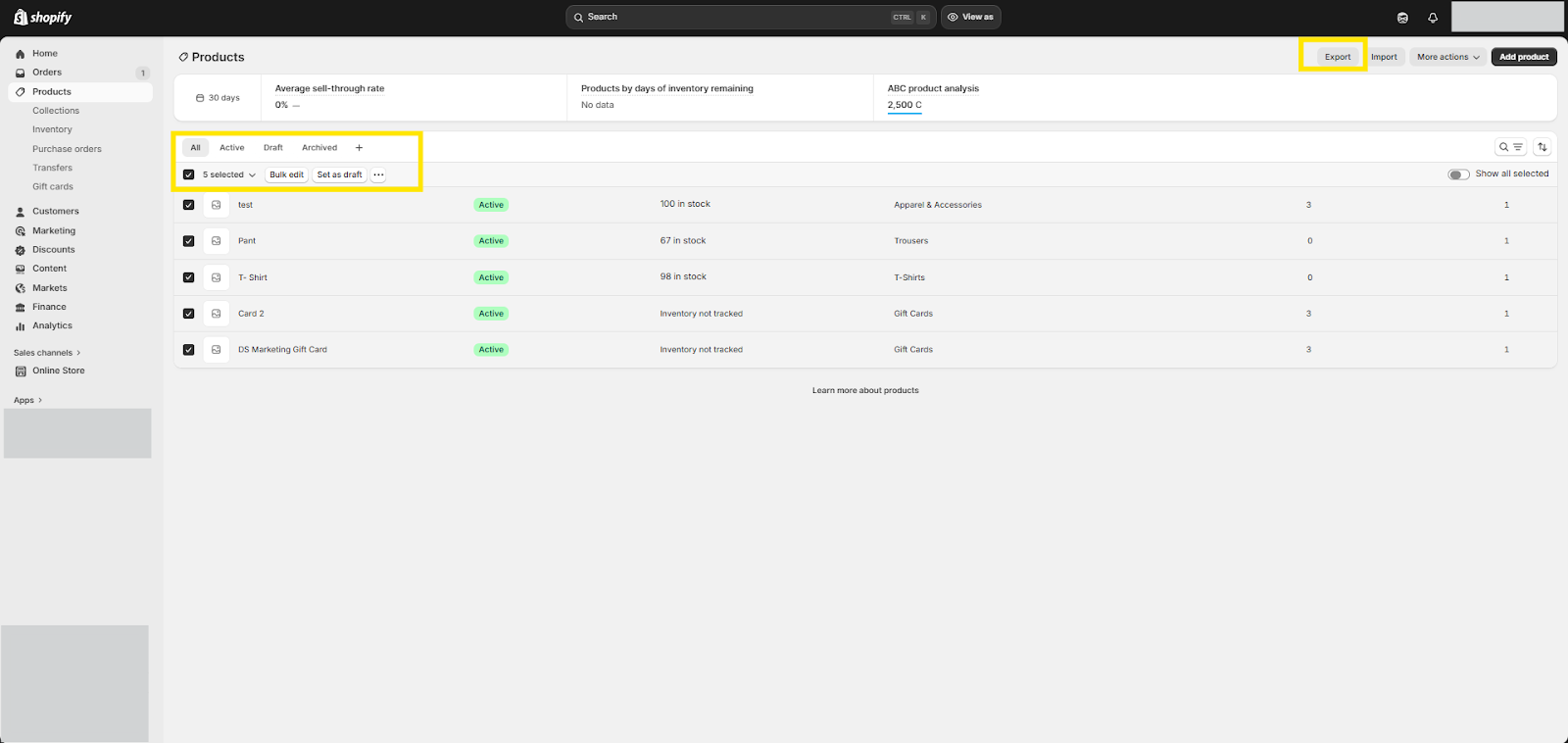
As your store scales, this manual work begins to break down. Consequently, you lose visibility into dead stock, slow-moving items, and underperforming variants. And, it becomes harder to optimize inventory, improve merchandising, and make data-driven product decisions.
Track Unsold Products in Shopify with ABC Analysis
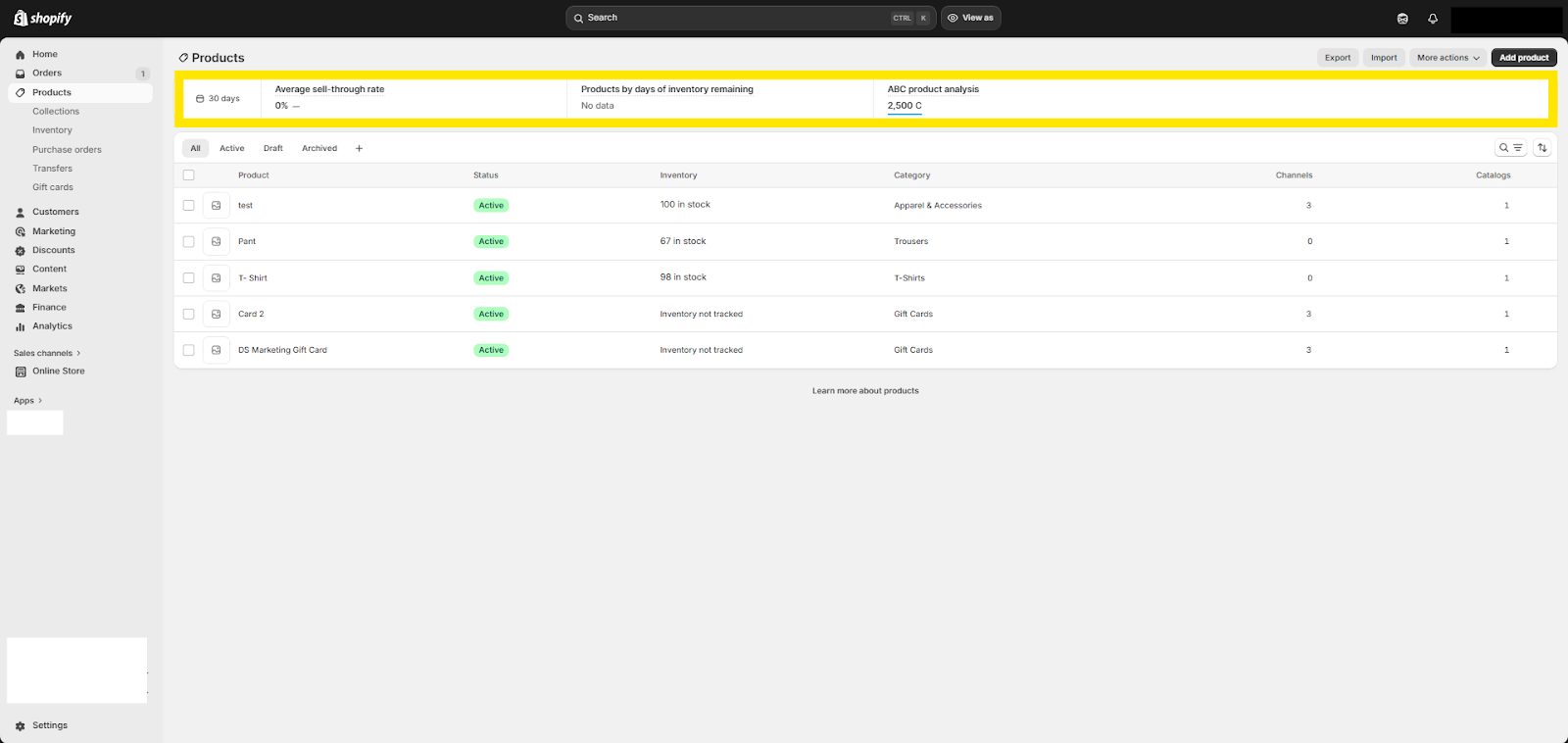
On the Products page, Shopify shows an analytics bar with key inventory metrics, including sell-through rate and ABC analysis. These insights can help you prioritize high and low-performing products at a glance. However, ABC analysis is designed for ranking product performance, but you cannot use it for identifying products that have never sold. In other words, it helps you decide what to focus on, but it does not give you a true zero-sales or never-sold product list.
Shopify doesn’t offer a single-click “unsold products” report, but with ABC Analysis, you can prioritize high-performing products, because what counts as unsold can vary. You might want to track products with no sales in the last 30 days, 90 days, all time, or even by specific sales channel. The flexible reporting system allows you to define exactly what “unsold” means for your business, giving you the control to focus on the inventory that matters most.
This is How You Can Spot Slow-Selling Products Quickly
The “Days in Stock” metric in Shopify offers a valuable addition to your inventory reports. It shows how many days a product variant has been in stock during your selected time period, helping you spot products that are sitting too long or selling too quickly.
Key metrics to track alongside Days in Stock include:
- Days of inventory remaining (which you’re also tracking)
- Inventory units sold per day
- Ending inventory units
- Sell-through rate
Together, these metrics give you a complete view of inventory performance, showing how long products have been available, how fast they are selling, and how much runway you have before stockouts.
Using the third-party Never Sold Products Report
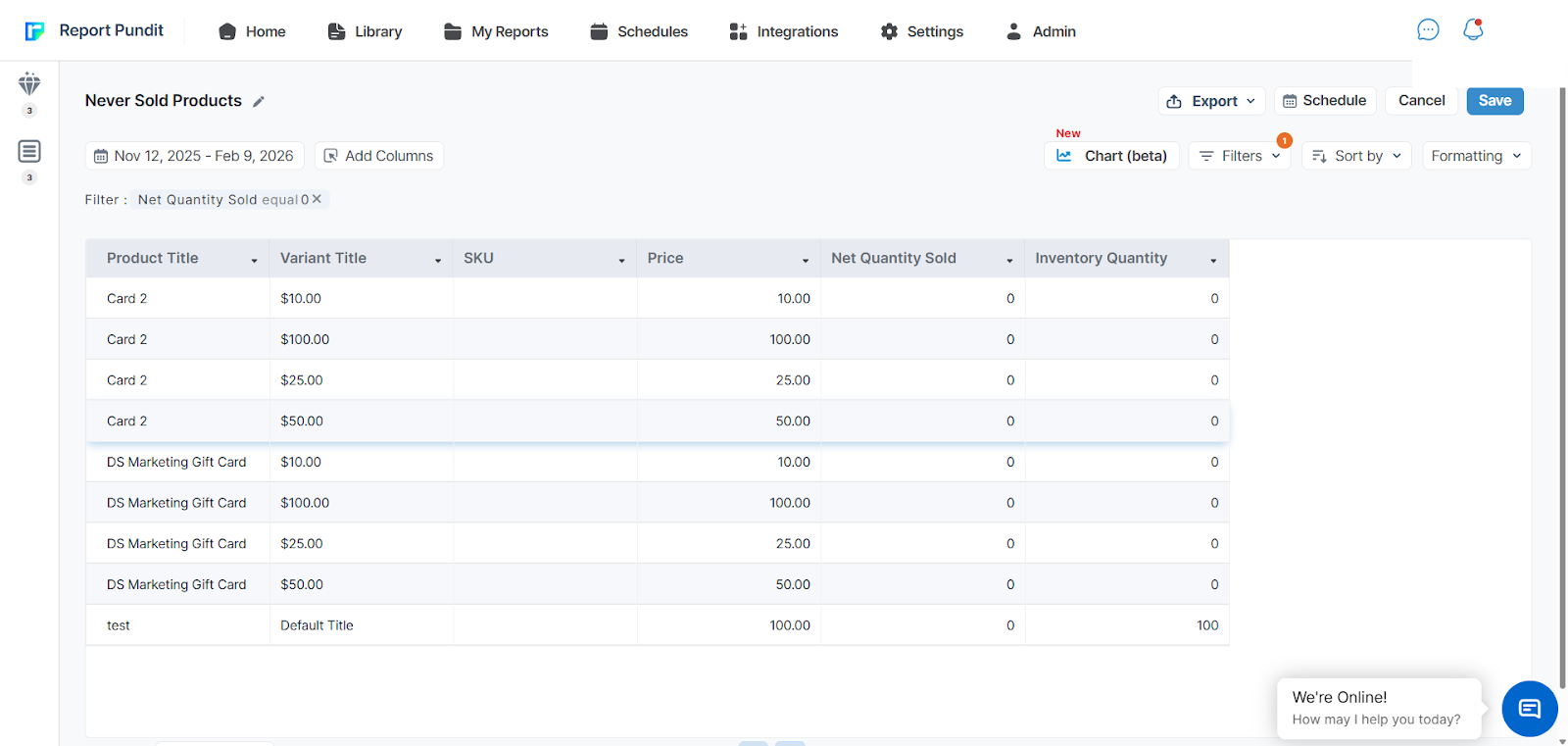
By using the Never Sold Products Report in Report Pundit, you can cross-reference with your full product inventory to identify zero sales items. This allows you to track products with no sales across a lifetime with a custom date range.
In addition, Report Pundit helps you distinguish between products that have never sold and products that are simply inactive or dormant (items that have sold in the past but have not had any recent sales due to low demand, seasonality, or paused promotions). You can also export detailed product data, including SKU, variants, pricing, inventory levels, and product creation dates. As a result, you can quickly identify items that need clearance, optimization, or deeper performance analysis.
Zero Sales Tracking Options in Report Pundit
You can use Report Pundit to find zero-sales products across multiple scenarios, including:
- Products that have never sold at any time
- Products with no sales in the last N days, such as 30 days or 90 days
- Products with no sales since their creation date
- Products with no sales since their published date
This allows you to easily spot slow-moving inventory and dead stock. Consequently, you can make faster decisions on discounting, restocking, discontinuing products, or adjusting your merchandising strategy.
How You Can Better Use and Integrate this Report
You can enhance the workability of this report by connecting unsold product data with other workflows and sales trends. For example, you can merge unsold product insights with low stock alerts to automate smarter reorder decisions. As a result, this report becomes a go-to tool for inventory planning, inventory replenishment, and product optimization.
Multi-Location Support
This report also supports location-based inventory tracking, making it easier to manage stock across multiple warehouses or stores. It handles location-specific inventory data and metafields, such as supplier lead times, which helps you plan reorders more accurately. Furthermore, it enables cross-store comparisons, allowing you to identify unsold products across locations and adjust stock distribution accordingly.
This is especially useful for tracking
- Dead inventory
- Seasonal leftovers
Why It Matters
For any merchant, knowing which products are not selling is as important as tracking top performers. The Never Sold Products Report in Report Pundit lets you cross-reference your full catalog with store transactions, showing zero-sales items across any custom date range, from the last 30 days to the product’s entire lifetime.
With this insight, you can identify dead stock, slow-moving items, and seasonal leftovers, freeing up warehouse space, reducing storage costs, and avoiding overstock. Integrating these insights with low-stock alerts or automated workflows helps you plan smarter reorders and track seasonal trends for better merchandising decisions.
Ultimately, zero-sales reporting allows you to make data-driven decisions to optimize inventory, improve cash flow, and focus on what actually drives revenue.



-%20Report.jpg)





Build and automate your Shopify Reporting
Unlock the full potential of your Shopify store with Report Pundit. Gain access to over 2000 data fields, automate reports, and make data-backed decisions to grow your business.