How to Send Shopify Reports to Slack Automatically

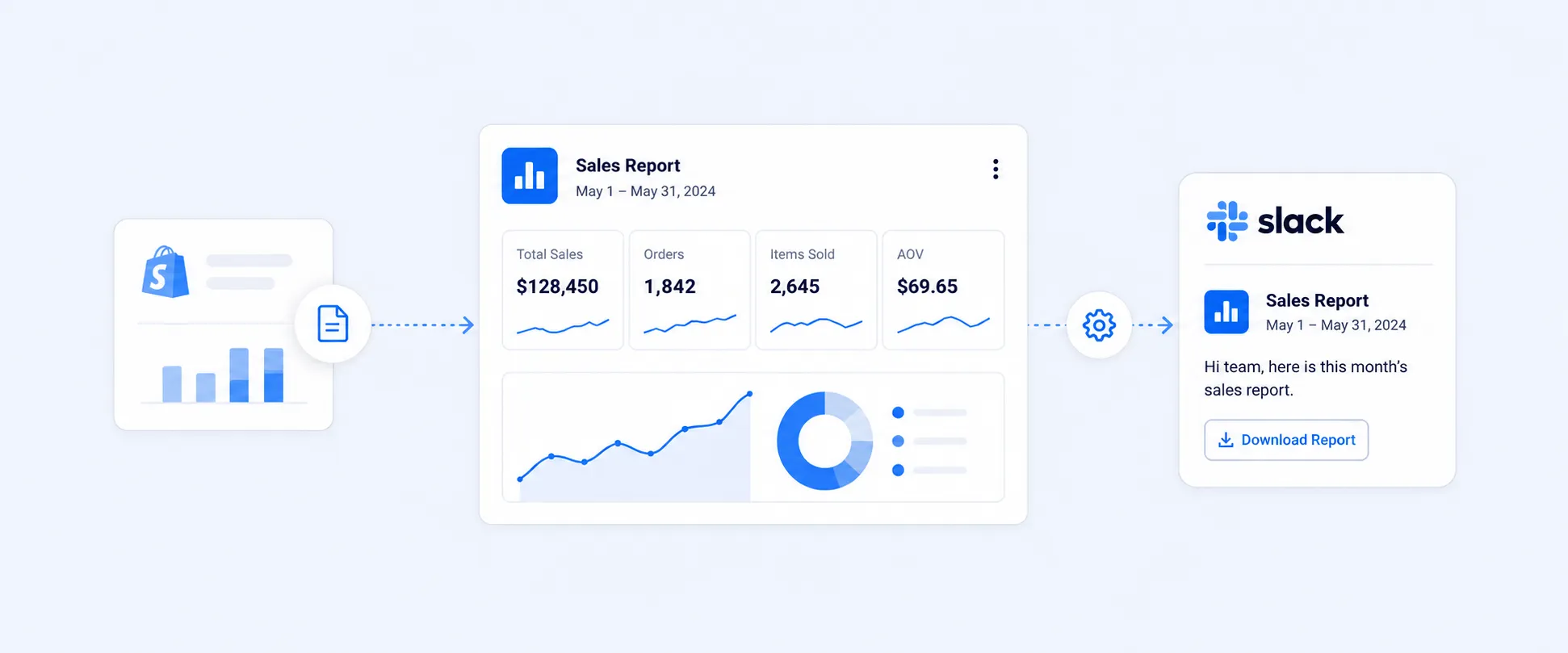
Manually exporting reports from Shopify and sharing them with your team is a headache and time-consuming. On top of that, you have to keep data consistent, share it securely, and ensure the right people actually see the updates. As your store grows, this process becomes harder to manage and easier to miss.
To solve this, you can automate report delivery to Slack. By connecting Shopify with Slack using tools like Shopify Flow or reporting apps, you can send reports automatically to specific channels or team members.
During peak moments like flash sales or Black Friday, this manual process slows everything down. Instead, you can connect Shopify to Slack and automatically share sales updates, inventory alerts, and order details.
Why Teams Outgrow Manual Shopify Reporting
Shopify’s built-in analytics is useful for exploring data, but it is not built for automatically sharing insights with your team. This creates a dependency where only a few people track performance, while everyone else waits for updates.
For growing stores, this leads to key gaps:
- Missed flash sale insights: Sales may perform well, but the team does not realize it in time to scale or extend the campaign
- Delayed conversion tracking: Drops in conversion rate are noticed late, which delays fixes and impacts revenue
- Late customer trend visibility: New customer patterns only become clear during monthly reviews, slowing down decision-making
The solution is not checking dashboards more often, but setting up automation so the right data reaches your team instantly.
Why Teams Use Slack for Shopify Reporting
Sometimes email inboxes fill up fast, and dashboards often get ignored. But Slack is where your team already hangs out, so sharing Shopify data there keeps everyone in the loop without extra effort. Reporting helps your team know what’s happening in your store as it happens. Here are a few practical examples:
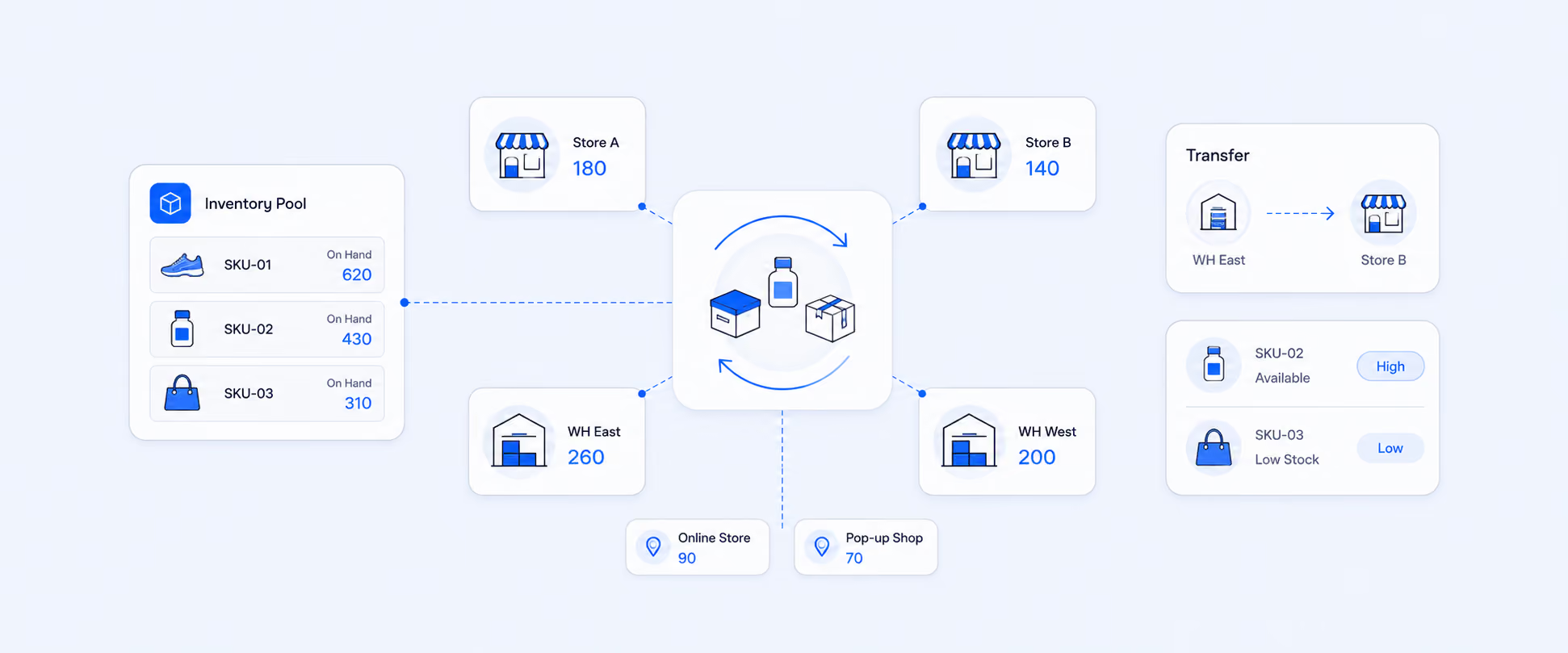
- Inventory managers get an alert the moment stock drops below a set level, helping them restock before items run out
- Customer service teams can respond quickly to high-value orders without switching apps or waiting for emails
- Scheduled weekly or monthly reports help build a strong data-driven culture across the business
- Slack alerts are more visible than emails and can notify the right team members when action is needed
Steps-by-step: Send Shopify Reports to Slack
There are two main approaches. One uses Shopify Flow as a native Shopify automation option, and the other uses a custom webhook or app-based setup.
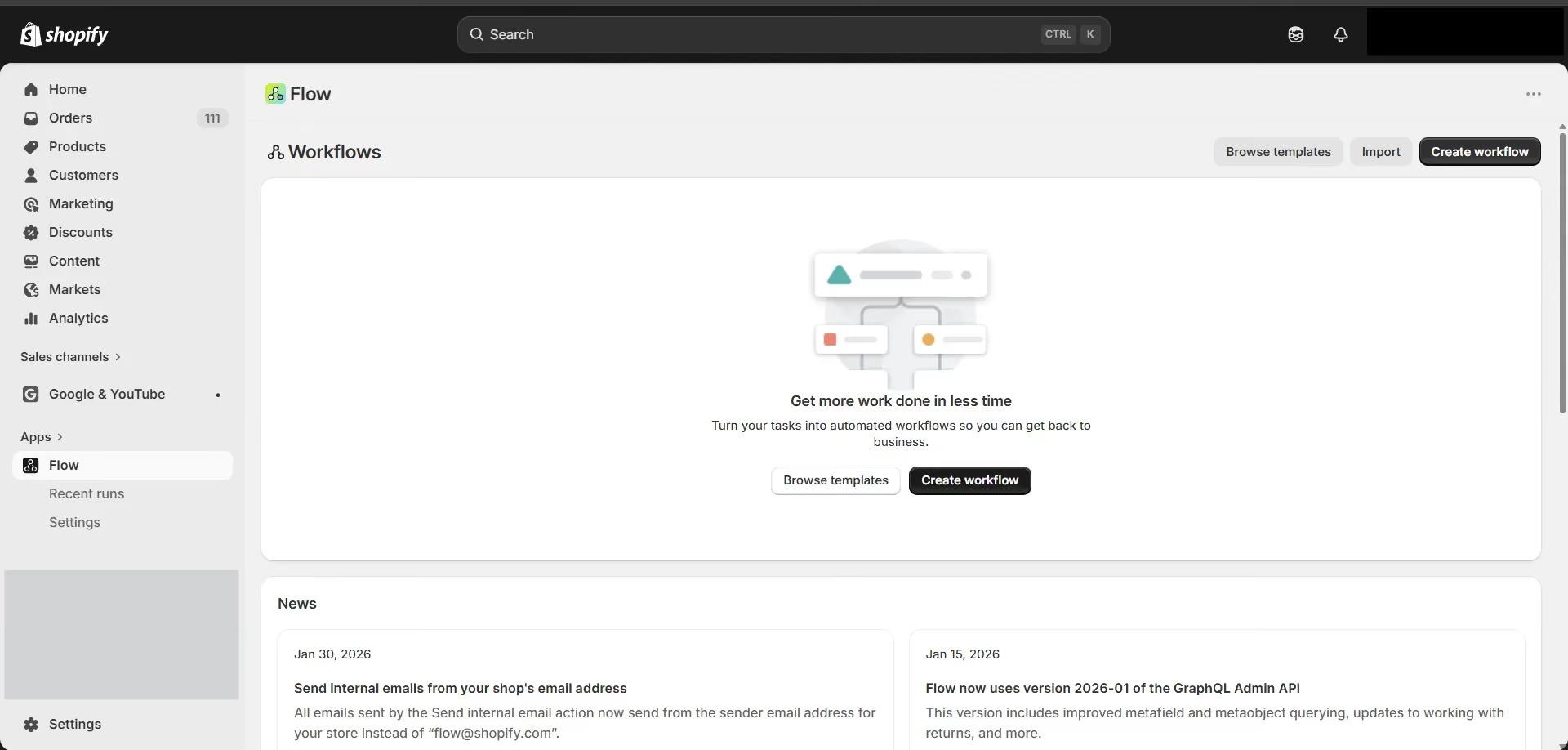
Method 1: Shopify Flow
- Install Shopify Flow from the Shopify App Store if you haven’t already done so.
- Connect Slack: Inside Flow, click Add action, find the Slack app, and click Connect to authenticate with your Slack workspace.
- Add FlowBot to your channel: In Slack, open the channel where you want messages to appear, go to Integrations, click Add an App, search for FlowBot, and click Add.
- Choose a trigger: Select the Shopify event that should start the workflow, for example, a new order, a return request, or an inventory level change.
- Configure the message: Select Send Slack message, enter your channel name or a Slack member ID, and add dynamic variables to personalise the message content.
- Turn on the workflow: Click Turn on workflow, and the automation runs automatically from that point on.
- Scheduled reporting: You can also use scheduled triggers in Shopify Flow to send daily or weekly summaries instead of relying on real-time events.
Method 2: Custom webhook workflow
You can access Shopify webhooks under Settings > Notifications in the Shopify admin. This approach usually requires a custom endpoint, middleware layer, or automation platform that receives Shopify webhook data, reformats it into Slack’s required JSON payload, and then posts it to Slack. This approach requires developer knowledge but gives you control over message formatting and data filtering.
Are Simple Slack Alerts Enough for Your Reporting Needs?
As your reporting needs grow, simple Slack alerts start to fall short. Notifications like “new order” or “low stock” are useful in the beginning, but they rarely give your team enough context to make informed decisions.
Over time, teams need more than just alerts. They need structured information that brings together sales, inventory, customer, and financial data in one place, so they can understand what is actually happening in the business.
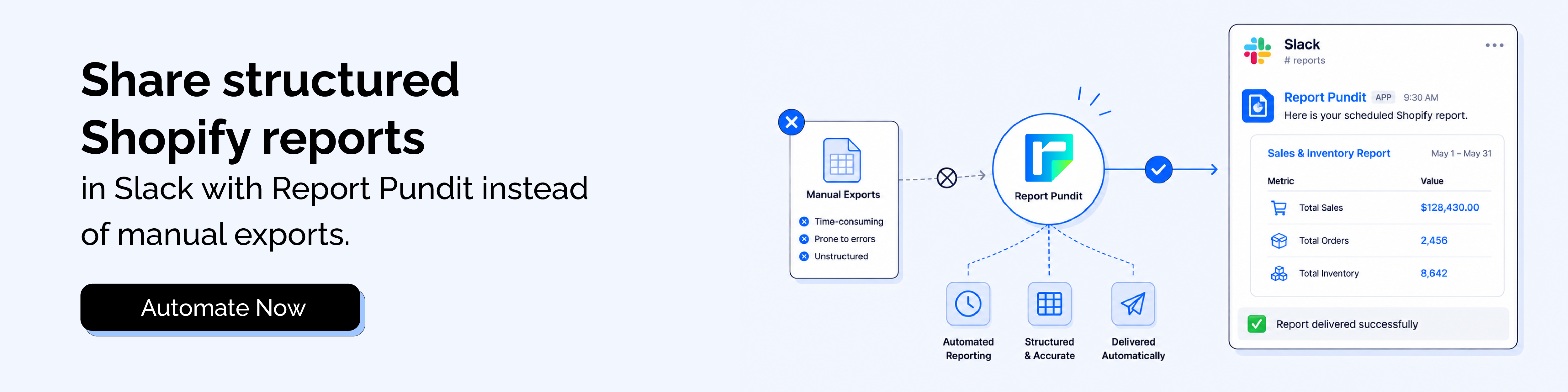
Instead of relying only on basic notifications or manual exports, many teams move toward sending more complete reports directly to Slack. This helps turn scattered updates into something more consistent and easier to act on.
For example, instead of sending multiple alerts throughout the day, teams often start sharing:
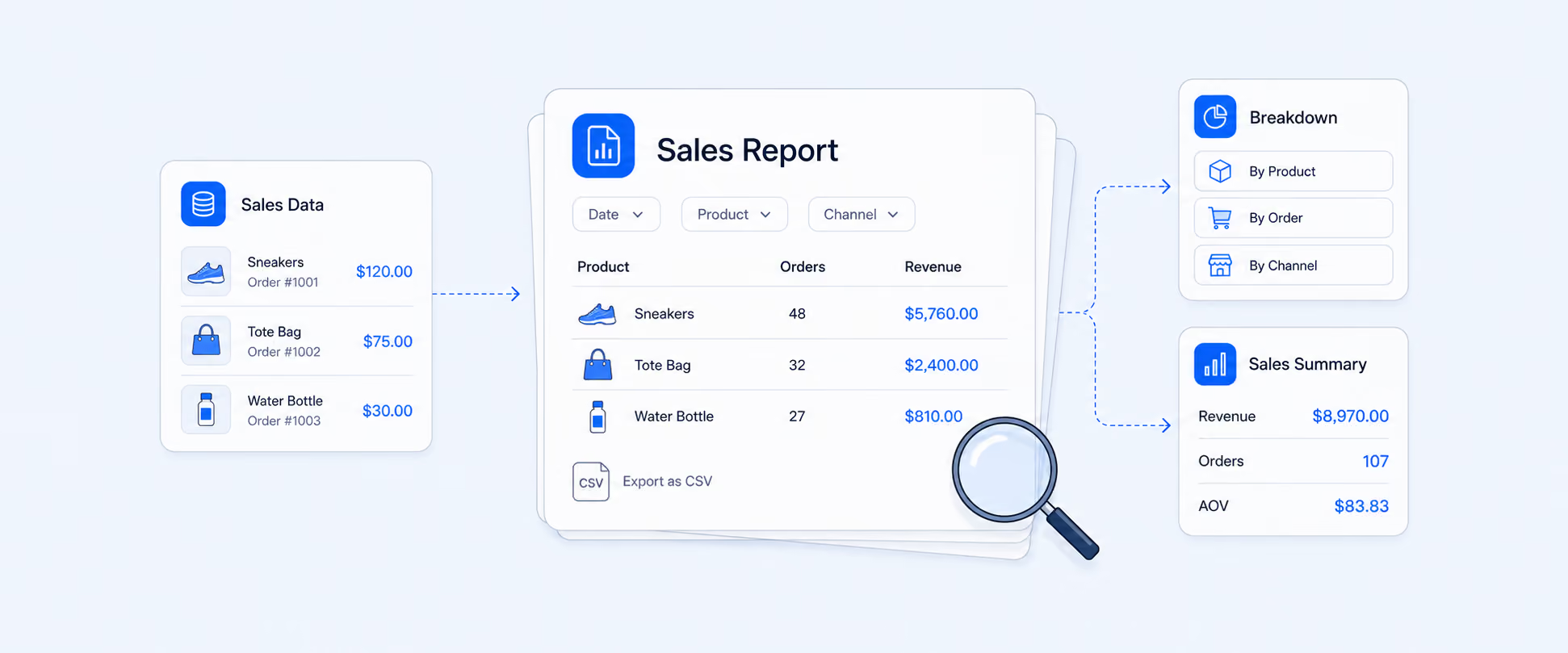
- A daily sales summary with key metrics in one message
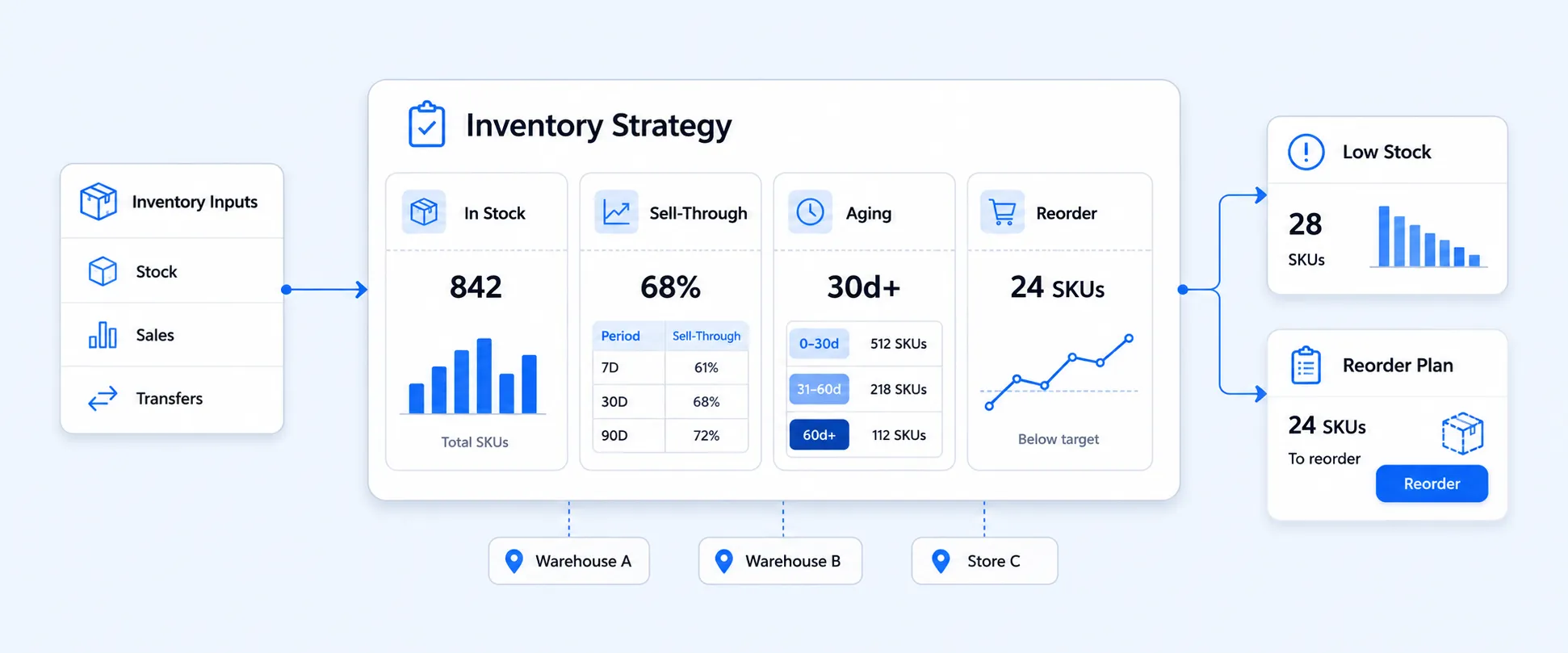
- Inventory alerts with exact product details and stock levels
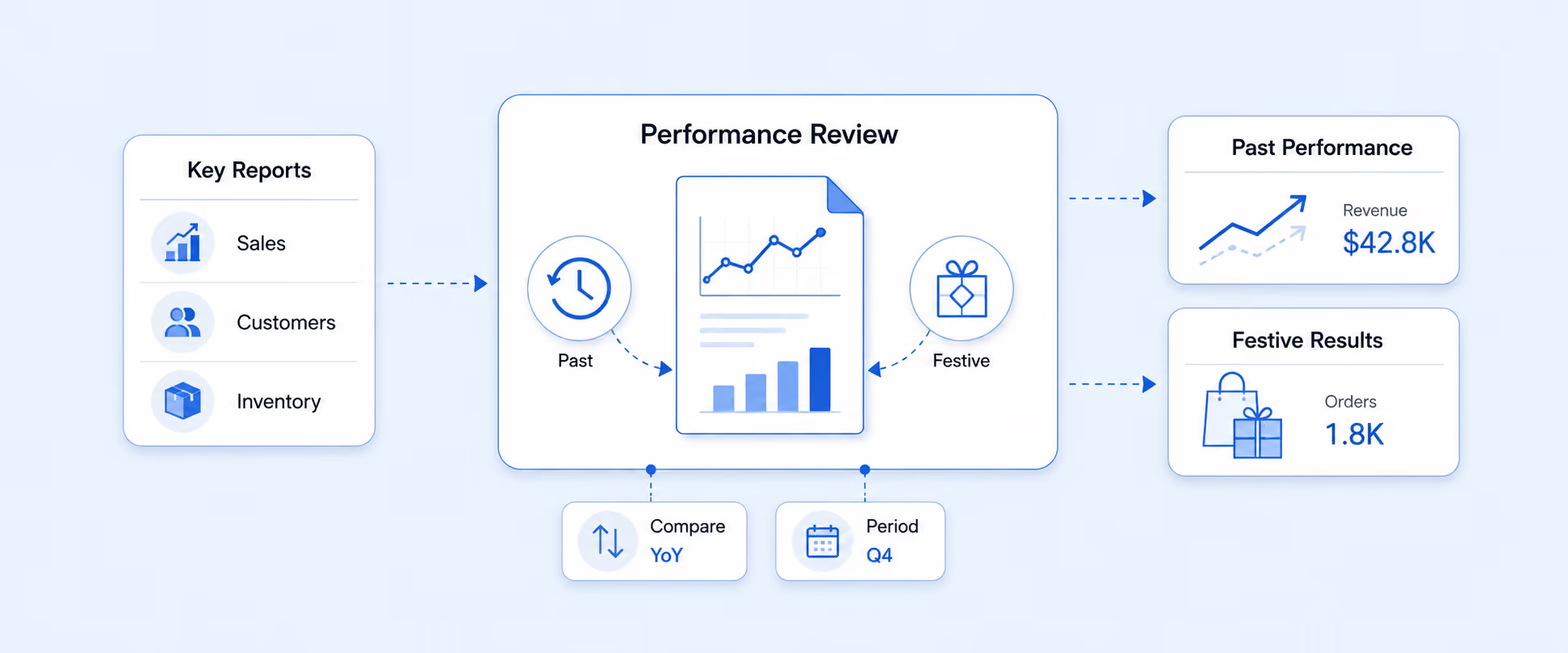
- Weekly performance reports to track trends over time
This approach also makes it easier to:
- Customize what data is included based on your business needs
- Combine data from different areas like orders, refunds, and customer activity
- Schedule reports so your team receives updates automatically
- Share sensitive data only with the right team members through specific Slack channels
The goal is not just to send data to Slack, but to make sure the data is clear, consistent, and useful for decision-making.
Follow simple step-by-step documentation to connect Slack and start sending automated reports in minutes.
Conclusion
Manually pulling Shopify data and sharing it in Slack works for a while, but it quickly creates chaos when your store gets busy. For fast-moving teams, this usually happens at the worst time.
So automation is much easier than it sounds. Shopify Flow works well across all Shopify plans, while tools like Report Pundit work without coding.
Start small with one report, like daily orders or low inventory alerts. Once it runs automatically, you will not want to go back to manual work.

5.0 ( 2000+ Reviews)