Shopify Daily Sales Report: How to Run, Read, and Automate It

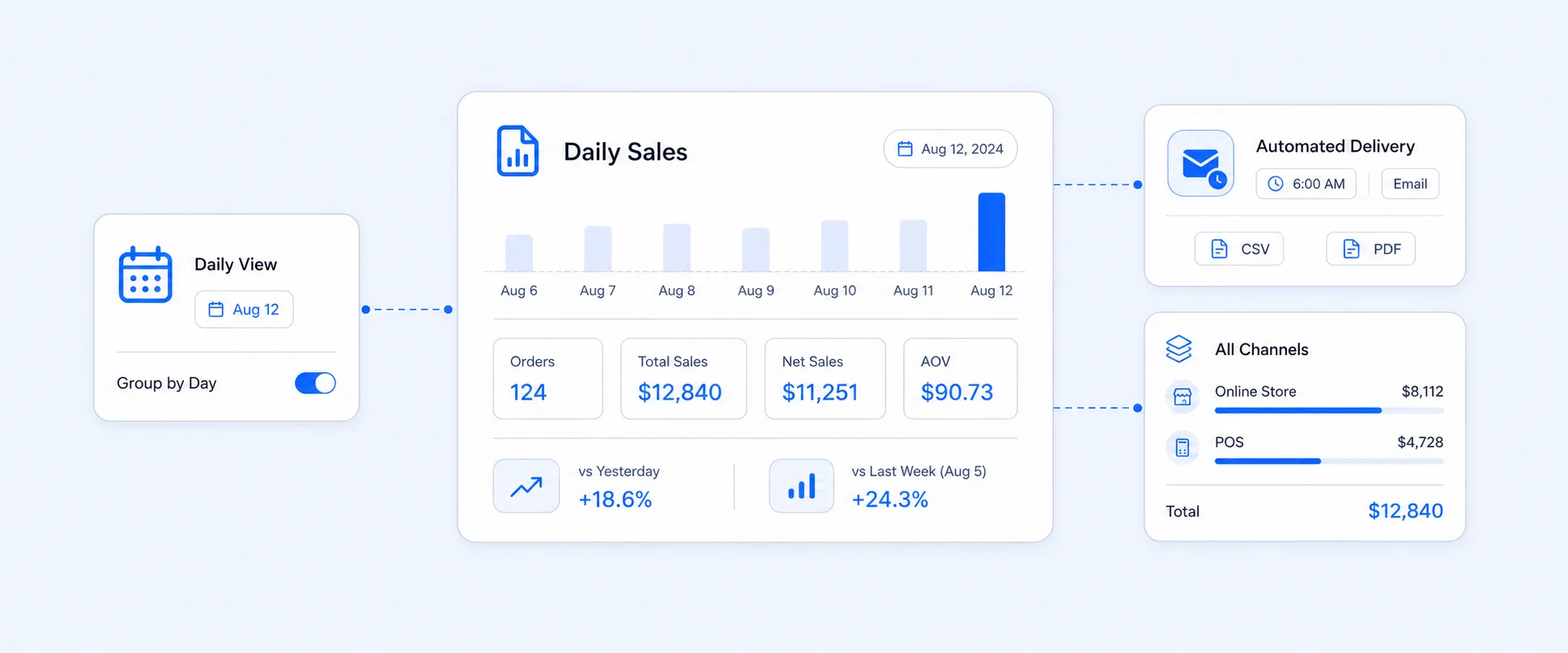
Your Shopify daily sales report is the fastest way to see how the store performed yesterday: orders, total sales, and average order value in one view. The catch is that Shopify makes you pull it manually every day. Here is how to run it, read it, and set it to arrive automatically.
A Shopify daily sales report is the Total sales over time report with the date range set to a single day. Go to Analytics > Reports > Total sales over time, set the date range to today, and choose Group by day. It shows orders, total sales, net sales, and average order value. Shopify has no built-in way to schedule it, so daily auto-delivery needs a third-party app.
Key Takeaways
- Thedaily sales report is not a separate report. It is the Total sales over time report grouped by day.
- Find it under Analytics > Reportsin your Shopify admin, on both desktop and the mobile app.
- For a fast morning read without opening a report, use the Analytics overview dashboard.
- Shopify POS has its own Daily Sales report that compares today to the same day last week.
- Shopify cannot email or schedule the report on its own. Automation requires a reporting app such as Report Pundit.
What is a Shopify daily sales report?
A Shopify daily sales report is a single-day view of your store's sales performance. In Shopify's own reporting, it is not a standalone report at all. It is the Total sales over time report with the date range narrowed to one day and the data grouped by day.
For most merchants that one report answers the core daily question: how much did we sell, across how many orders, at what average order value. You can see total sales, net sales after discounts and returns, order count, and AOV without touching a spreadsheet.
Shopify's Total sales over time report shows the number of orders and the total sales you have made over a period, and a Group by menu controls how that data is grouped, including by day.
How do I run a daily sales report in Shopify?
To run a daily sales report, open the Total sales over time report and set it to a single day. It takes under a minute and the data is current to within about a minute of the last order.
Steps in the Shopify admin (desktop)
- From your Shopify admin, go to Analytics, then Reports.
- Click the Category filter and choose Sales to narrow the list.
- Open the Total sales over time report.
- Set the date range to Today (or the day you want to review).
- In the Group by menu, choose Day so each day appears as its own row.
- Optional: click Export to download the day as CSV or Excel.
Steps in the Shopify app (mobile)
- Open the Shopify app and tap the menu icon.
- Tap Analytics, then Reports.
- Tap the filter icon, tap Category, then tap Sales.
- Open Total sales over time and set the date range to today.
How to create a custom daily sales report
If the default view is missing something, you can customize the daily report before you read or export it. The report is fully editable from the same screen, so you can shape it around the metrics your team actually tracks.
- Change the date range and keep Group by set to day for a rolling daily view.
- Add columns such as order count, refunds, average order value from the Metrics menu.
- Add dimensions to split the day by product, channel, or staff member.
- Remove columns you do not need so the export stays readable.
This is also where the related searches people run come together. A daily view by product is the Total sales by product report with a one-day range. A monthly view is the same report grouped by month. They are all variations of the same Total sales reports, just with a different date range and grouping.
See daily sales at a glance: the Analytics overview dashboard
If you want the number without running a report, the Analytics overview dashboard is the quickest option. From your Shopify admin, go to Analytics, then Overview (Dashboards). It surfaces today's total sales, sessions, orders, and conversion alongside a comparison to a previous period.
The trade-off is depth. The dashboard is built for a quick pulse check, not for slicing the day by product, staff, or channel. When you need that breakdown, or a copy you can send to someone, you go back to the Total sales over time report or export it.
How to find your Shopify POS daily sales report
Retail stores have a separate path. Shopify POS has its own Daily Sales report built for the register, and it works differently from the admin sales reports.
- On Shopify admin, tap Analytics> then reports
- The Total sales by POS location shows Gross sales, Net sales, Discounts, Returns, Taxes and shipping charges
- It compares today's sales to the sales made on the same day last week, which is useful for spotting an off day fast.
The POS Daily Sales report compares today's sales to the same day last week and displays net sales, average order value, and items per order.
If you run several outlets, this per-device view only tells part of the story. To see all locations and your online store together in one daily report, you need reporting that pulls every channel into a single view.
Why the manual daily report isn't enough
Running the report by hand works, but it has one real limitation: you have to do it. Every day. For every store you operate. Shopify's reports are current and detailed, but they do not arrive on their own.
There is no native option to schedule the daily sales report or have it emailed to you. If you want the report waiting in your inbox at 6 AM, or dropped into a Slack channel, or exported as a PDF for a client, Shopify cannot do that alone. Automated delivery is only available through third-party reporting apps.
How to automate your Shopify daily sales report
This is where a reporting app earns its place. Report Pundit connects to your store and turns the manual daily pull into a scheduled report that arrives however you want it, for online stores and POS alike.
- Set the timeframe: last 24 hours, week to date, or month to date, on a schedule you choose.
- Schedule delivery: have the report emailed daily at a set time, or exported as CSV, Excel, or PDF.
- Pick your metrics: sales by staff, by product, by fulfillment date, or even by event date.
- Show only the fields that matter, instead of sorting through Shopify's full column set.
- Combine every location and your online store into one daily report.
Two real examples show where a customised daily report goes beyond the native version.
The gap in one line
Shopify shows daily sales, but it cannot schedule or send reports automatically. That requires a reporting app.
Real merchant example: line-item property reporting
A store selling premium fashion accessories needed more than a standard sales summary. They wanted to track a custom color option and flag any order over $500 that qualified for a free silk scarf promotion. Shopify's native reports do not display line-item properties, so a customized daily report was built to include the custom color selection, a flag for high-value orders over $500, and clear visibility on which orders included the promotional item. That saved hours of manual work and gave the marketing and fulfillment teams what they needed in one daily report. Custom fields like these can be added to any report as columns, as covered in our guide to reporting on line-item properties and note attributes.
Real merchant example: order due date reporting
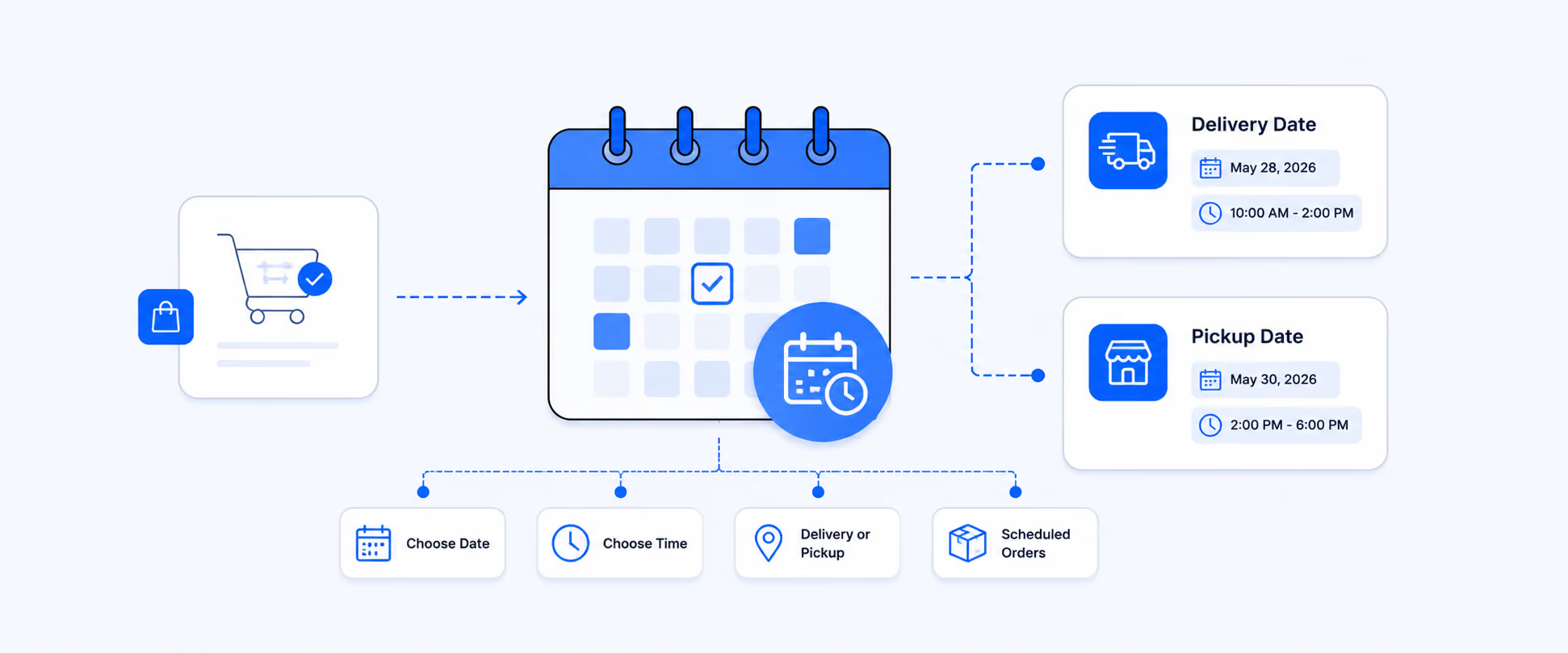
Another merchant needed to track upcoming orders, not the last 24 hours. Their bestseller reports were based on order and refund dates, so a daily export only captured recent sales. The report was rebuilt to pull from a Translated Order Due Date field, so it fetched orders scheduled for the next 30 and 90 days instead. A daily PDF export was set up for both, letting them plan fulfillment ahead of time without manual filtering.
Frequently asked questions
How do I run a daily sales report in Shopify?
Go to Analytics, then Reports, and open the Total sales over time report. Set the date range to today and choose Group by day. The report shows your orders, total sales, net sales, and other fields. You can export it as CSV or Excel.
How do I create a custom daily sales report?
Open the Total sales over time report, keep Group by set to day, then use the Metrics and Dimensions menus to add or remove columns. You can split the day by product, staff, or channel, and export the result. For scheduled or emailed delivery you need a reporting app.
Can I automate my Shopify daily sales report?
Not with Shopify alone. Shopify has no built-in scheduling for sales reports. A third-party app such as Report Pundit can send the report to your inbox or Slack on a daily schedule, and export it as CSV, Excel, or PDF automatically.
Does the daily sales report include refunds?
Yes. Net sales in the report already subtract discounts and sales reversals, which is Shopify's term for returns, cancellations, and edits. Refunds appear as a negative value on the day they are processed, not the day of the original sale.

5.0 ( 2000+ Reviews)