How to Export Shopify Orders with All Line Items
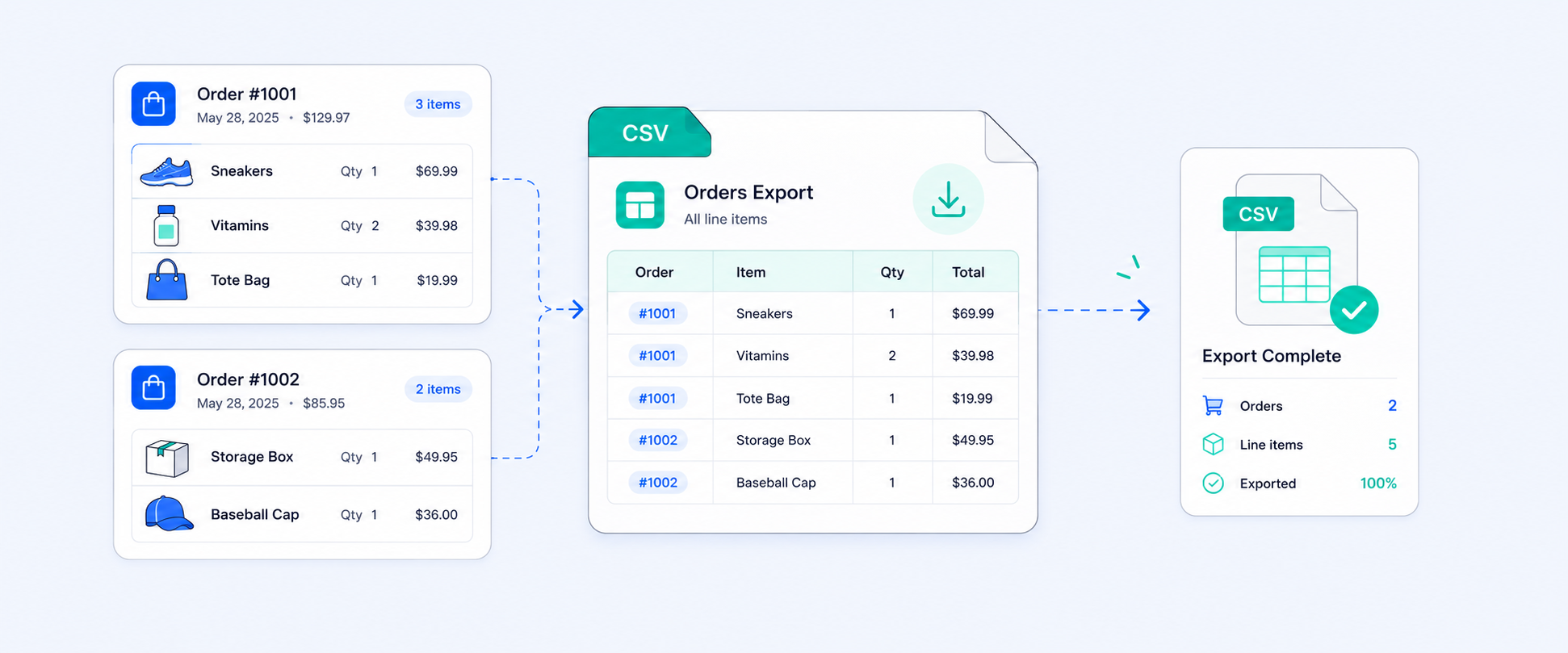
Exporting Shopify orders with all line items means capturing every product in each order along with details like SKU, quantity, price, discounts, and custom options in a clean, usable format. While Shopify offers a built-in export, it often falls short when you need complete and well-structured line item data.
You might notice this quickly after a big sale. Orders with multiple products are split across rows, key fields like custom options may be missing, and larger exports are sent by email instead of downloading instantly. What looks like a simple export can turn into extra cleanup before your team can use the data.
In this guide, you will learn how Shopify’s native export works, what it includes, where it falls short, and how advanced reporting tools help you get a complete and ready-to-use line item export.
What are the exact line items in a Shopify Order?
Before getting into how to export them, it helps to be clear about what line items mean in a Shopify context. In Shopify, an order represents a complete transaction made by a customer, including details like customer information, total amount, payment status, shipping, and fulfillment.
Every Shopify order is made up of one or more line items. Each line item represents a single product or product variant that a customer purchased in that order. For example, a customer who buys a blue t-shirt in size medium and a pair of black jeans in the same order has placed one order with two line items.
Each line item includes its own set of details. This usually covers the product title, variant name, SKU, quantity ordered, unit price, any discount applied, and fulfillment status. For stores that use customization apps, line items also include extra details such as engraving text, color selections, or special instructions and that’s called line item properties.
When you export Shopify orders, you are not just exporting basic order information like customer name, order total, or shipping address. You are exporting a structure that needs to capture every product in every order, along with its specific details. That is what makes a complete line item export both essential and sometimes difficult to get right.
Two Ways to Export Shopify Orders Using Native Export
Method 1: Export from Orders page
Step 1 : Log in to your Shopify admin and click on Sales from the left menu.
Step 2 : Use filters, such as date range, payment status, fulfillment status, and more, to choose the orders you want.
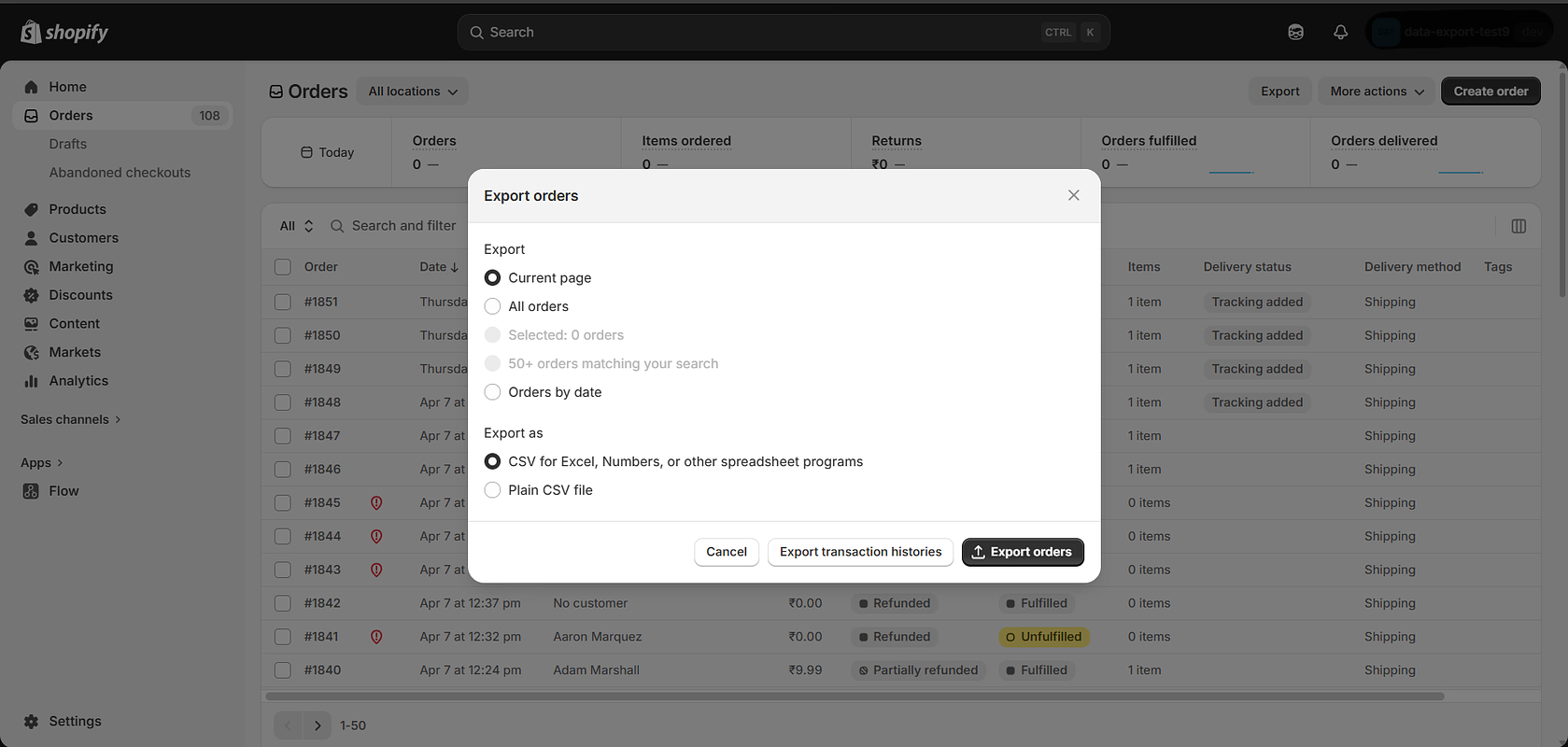
Step 3 : Click the Export button in the top right corner of the Orders page.
Step 4 : In the export window, select which orders to export. Choose from the current page, selected orders, orders by date range, or all orders.
Step 5 : Under "Export as," select Export orders to get full order data with all line items.
Step 6 : Click Export orders, if the dataset is small, the file downloads immediately. If it is large, Shopify sends the file to your email.
Method 2: Export from Analytics reports
Step 1 : Go to Analytics in your Shopify admin
Step 2 : Click on Reports
Step 3 : Open the Orders category and choose a relevant order report
Step 4 : Adjust filters such as date range if needed
Step 5 : Click Export to download the report
Note: Method 1 is ideal for a basic, quick view of your data. In contrast, Method 2 is better suited for a more analytical view, allowing you to add additional details, customize fields, and dive deeper into insights. It is especially useful when you need more control over how data is structured and presented.
What the standard export does not show
- Tracking details are not in the export
Fulfillment tracking numbers and carriers are stored separately and do not appear in the Orders file. - The order timeline cannot be exported (order events)
Actions like manually marking an order as paid are not available for export or filtering. - Multi-item orders create repeated rows
Each product is listed on its own row, so order details are repeated for orders with multiple items. - No combined filtering by fulfillment location and sales data
You cannot export orders filtered by fulfillment location along with metrics like net sales using the native export.
Export Shopify Orders with All Line Items Using Report Pundit
Step 1. Install and open Report Pundit
- Open the app from your Shopify admin
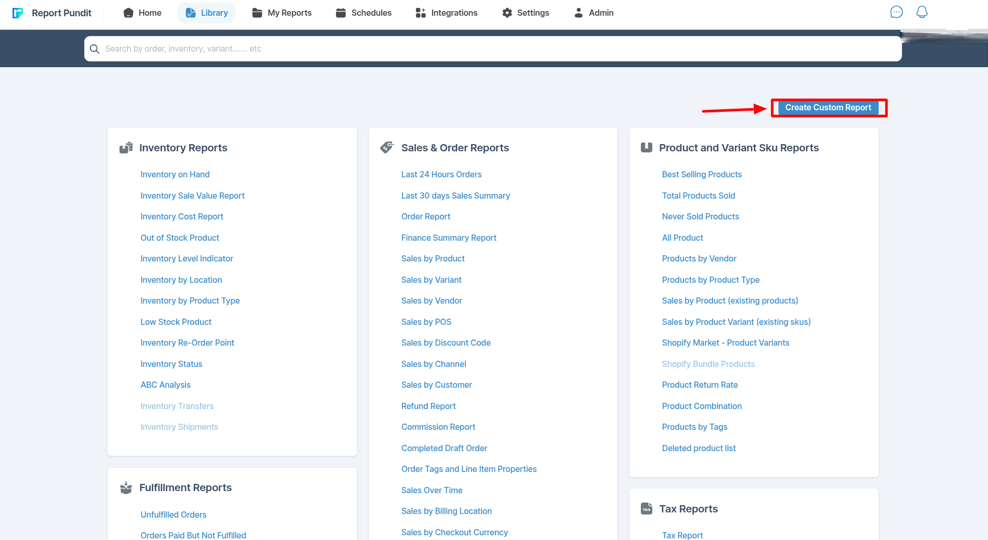
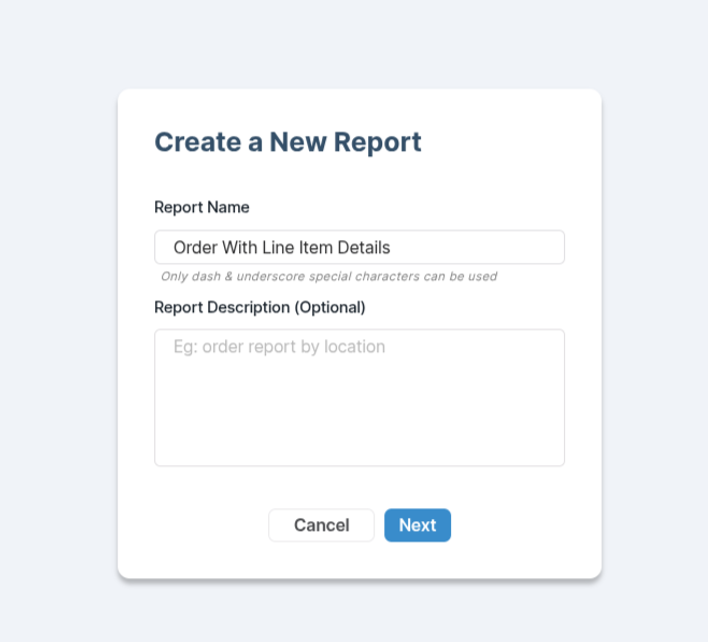
Step 2. Create a new report
- Click “Create Custom Report”
- Choose Orders & Products

Step 3. Add required fields (columns)
Include fields like:
- Order ID
- Order Name
- Created Date
- Customer Name
- Financial Status
- Product Title
- Variant Title
- Variant SKU
- Quantity
- Price
- Discount
- Vendor
You can also add (optional)
- Tags
- Shipping method
- Fulfillment status

4. Apply filters (optional but recommended)
You can filter by:
- Date range (last 30 days, custom range, etc.)
- Fulfillment status
- Specific products or vendors
- Sales channel
- Preview the report
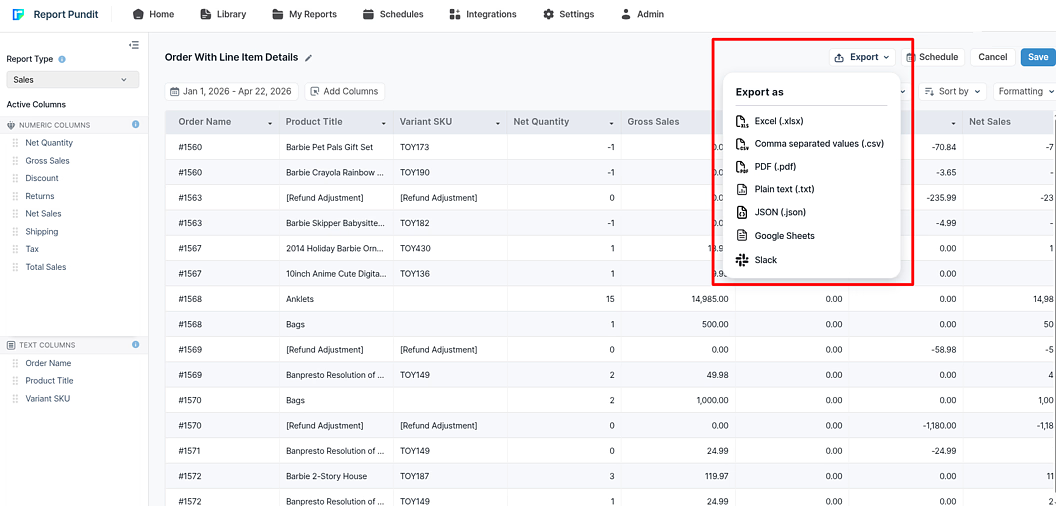
5. Export the report
Click Export and choose format:
- CSV (most common)
- Excel (XLSX)
Shopify Native Export vs. Report Pundit
Here is a quick comparison between Shopify’s native export and Report Pundit to help you understand the differences.
Which Export Method Should You Use
Shopify: Use Shopify's native export when you need a quick, one-off snapshot of recent orders. Your team only needs the standard fields (name, SKU, quantity, address), and you're comfortable with the multi-row format for multi-item orders.
Report Pundit: You can use it when you need line item properties or custom options included, you want a clean one-row-per-line-item format, your team needs the export delivered automatically on a schedule, you need to add calculated fields like profit or discount rate, or you're managing exports across multiple Shopify stores at once.
A Case Study on Missing Custom Line Item Properties in Shopify Export
One of our customer needed to export Shopify orders with complete line item details, including custom inputs collected from customers. While Shopify’s native export provided standard fields like SKU, quantity, and price, it did not include custom line item properties. This created gaps in order processing, especially for products that relied on personalization or special instructions.
Our team reviewed the export and found that Shopify’s default structure does not support custom line item properties in the Orders CSV, even though these fields are visible in the admin. The client had to rely on tools like Zapier to extract this data, which added extra steps and complexity. To solve this, we built a custom report configured at the line item level, ensuring both standard fields and custom properties were included in a single export.
As a result, the client received a complete and structured report with all required details in one place. This removed the need for multiple tools, reduced manual work, and helped the operations team process orders accurately without missing any customer-specific information.
Conclusion
Shopify’s native order export covers the basics, and it is free. But as your needs grow, the limits become clearer. If your orders include custom product options, if your team needs scheduled reports, or if your finance team wants calculated fields without extra spreadsheet work, the default CSV starts to fall short.
Report Pundit solves this by giving you a configurable line item export. You get access to all the fields your business needs, in a format that works with your tools, delivered on a schedule that fits your workflow. There is no need for manual downloads, no issues with blank rows, and no missing columns.
Your orders already contain the data. Report Pundit simply makes sure it is organized and delivered exactly where you need it.