
How To Create Custom Order Exports For Vendors, Warehouses, And Operations Teams in Shopify

.svg)
.svg)
.svg)
Managing fulfillment across multiple vendors and warehouses requires more than just exporting a spreadsheet from Shopify. As your store grows, suppliers need accurate line-item data, warehouses require structured shipping details, and operations teams depend on clean reports to track performance.
While Shopify offers structured order exports with detailed data fields, growing businesses often require more tailored formats to support complex multi-vendor operations. Different suppliers may have unique contract requirements, preferred column structures, or specific data points they need for processing orders. Warehouses and fulfillment partners may also rely on standardized file layouts that integrate directly with their internal systems. As operations scale, customized export formats become essential to ensure smooth coordination, reduce manual adjustments, and maintain accuracy across vendors and logistics teams.
Here, we’ll walk through how to create custom order exports for vendors, warehouses, and operations teams to streamline fulfillment, reduce errors, and build a system that supports long-term growth.
Common Challenges in Sharing Order Data with Vendors and Warehouses
Creating custom order exports for vendors, warehouses, and operations teams in Shopify becomes increasingly important as your store scales. While Shopify provides reporting tools, many merchants struggle with operational inefficiencies when sharing order data externally.
Below are the most common challenges in detail.
1. Manual Data Sharing
Many stores rely on manual workflows to send order data to vendors. This typically involves:
- Exporting CSV files daily
- Filtering orders manually by vendor
- Cleaning up unnecessary columns
- Emailing spreadsheets to suppliers
Manual processes simply do not scale. As order volume grows, operations teams spend more time managing spreadsheets than optimizing fulfillment.
2. Inconsistent File Formats
Different vendors and warehouses often require different data structures. For example:
- Some vendors want SKU and quantity only
- Others require barcode, internal codes, or cost price
- Warehouses may need the shipping address and fulfillment location
- 3PLs may require specific header naming conventions
This increases the likelihood of formatting errors and version control issues. Over time, inconsistent exports create operational friction and slow down fulfillment.
3. Multi-Vendor & Multi-Location Complexity
As your store expands, complexity multiplies. Common challenges include:
- Routing orders to the correct vendor
- Splitting orders containing products from multiple vendors
- Managing partial fulfillments
- Tracking shipments across multiple warehouses
- Coordinating drop-shipping and in-house fulfillment
Although Shopify supports multi-location inventory, exporting clean vendor-specific data requires precise filtering and reporting setup. Without this, vendors may receive items that don’t belong to them or miss items entirely.
4. Returns & Reverse Logistics Confusion
Returns often reveal weaknesses in data-sharing systems. Common issues include:
- The vendor is not informed when a return is processed
- Refund issued, but stock not updated
- Inventory not reconciled with the warehouse
- Partial returns are not reflected accurately
These challenges demonstrate why creating custom order exports for vendors, warehouses, and operations teams in Shopify is essential for operational efficiency.
How to Create Sales Reports by Vendor in Shopify
Beyond exporting orders, tracking vendor performance is critical for financial and operational decisions. Vendor-level sales reports help you measure contribution, profitability, and performance trends.
Here’s how to create detailed vendor sales reports in Shopify.
Step 1: Open “Sales by Product Vendor”
In Analytics > Reports:
Select Sales by product vendor
This report groups revenue and order data by the vendor field assigned in your product settings.
Step 2: Customize Report Metrics
Click Customize to add or modify columns, including metrics such as Gross sales, Net sales, Total sales, Quantity sold, and more.
This allows you to evaluate vendors beyond just revenue. So, you can identify:
- Vendors generating high revenue but high return rates
- Vendors with declining sales trends
- Vendors contributing the most order volume
Step 3: Adjust Date Range for Performance Tracking
Use the date selector to analyze vendor performance across different timeframes:
- Daily performance
- Weekly trends
- Monthly revenue comparison
- Quarterly performance reviews
Step 4: Save the Custom Report
After customizing your vendor report:
- Click Save as
- Name the report (e.g., Monthly Vendor Performance Report)
This creates a reusable reporting template for ongoing vendor analysis.
How to Export Vendor-Specific Orders in Shopify
If you want to export vendor-wise order data in Shopify, you can use the built-in Analytics reports.
Follow these steps:
- Step 1: Navigate to Reports
- Step 2: Choose the Right Report
Select one of the following reports (these support vendor filtering):
- Sales by product vendor
- Sales by product
- Sales by product SKU
The most direct option is Sales by product vendor, as it automatically groups data by the vendor field assigned to products.
- Step 3: Select Product vendor
You can further refine the export by applying additional filters, such as:
- Date range (Today, Last 7 days, Custom range)
- Sales channel
- Fulfillment status
- Location
This ensures only relevant vendor data appears in the report.
- Step 4: Export the Report
You now have a vendor-specific export that can be shared with suppliers, sent to warehouses, and imported into ERP systems for reconciliation
How to Use Your Vendor-Related Report for Product Performance
Drilling down into vendor product performance in Shopify allows you to move beyond surface-level revenue numbers and gain deeper operational and financial insights. Instead of evaluating vendors as a single sales figure, you can analyze individual SKUs to understand which products truly drive growth, profitability, and long-term value.
Start by identifying a specific vendor using reports like Sales by product vendor or Sales by product SKU in the Analytics section. Filtering by vendor helps isolate relevant products so you can evaluate key metrics such as quantity sold, gross sales, and net sales. Sorting products by sales volume or revenue quickly highlights best-sellers and reveals which SKUs are consistently generating demand. This insight helps prioritize restocking decisions, promotional efforts, and marketing investments.
You can further enhance vendor reporting by creating custom reports based on note attributes and custom delivery dates. This allows vendors to receive shipment-specific instructions, preferred delivery timelines, and order-level notes in a structured format. Including these fields ensures smoother coordination, accurate dispatch planning, and fewer communication gaps during fulfillment.
Beyond sales volume, analyzing margins is critical to understanding real performance. A high-revenue product may not necessarily be profitable if heavy discounts, returns, or shipping costs reduce margins. Comparing gross sales against net sales and factoring in cost per item provides clarity on which vendor products contribute the most to your bottom line. This level of visibility supports smarter pricing strategies and stronger vendor negotiations.
Returns and refunds also play a major role in vendor evaluation. Reviewing refunded quantities and return rates can uncover patterns tied to specific products, variants, or vendors. High return rates may signal quality issues, inaccurate descriptions, or customer expectation gaps. Addressing these issues not only protects profitability but also improves overall customer satisfaction.
How to Build Custom Order Exports for Warehouse Teams
As order volume increases in Shopify, warehouse teams need more than generic CSV exports. They require structured, workflow-ready files that support picking, packing, inventory updates, and fulfillment prioritization. This is where Report Pundit becomes useful.
Instead of manually cleaning spreadsheets, a third-party app allows you to create fully customized order exports tailored specifically for warehouse operations.
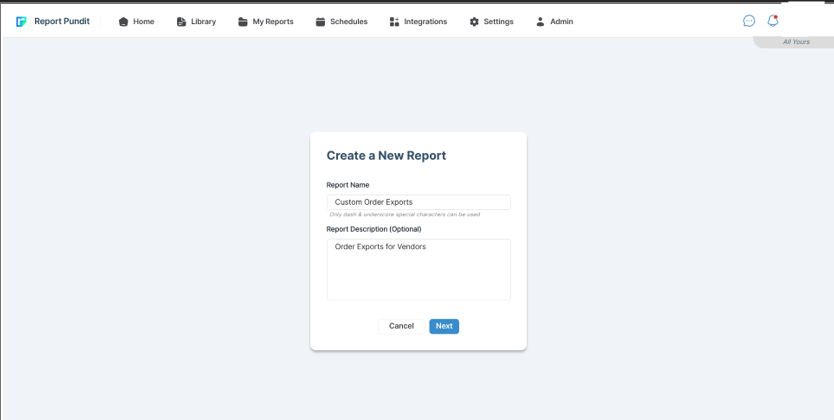
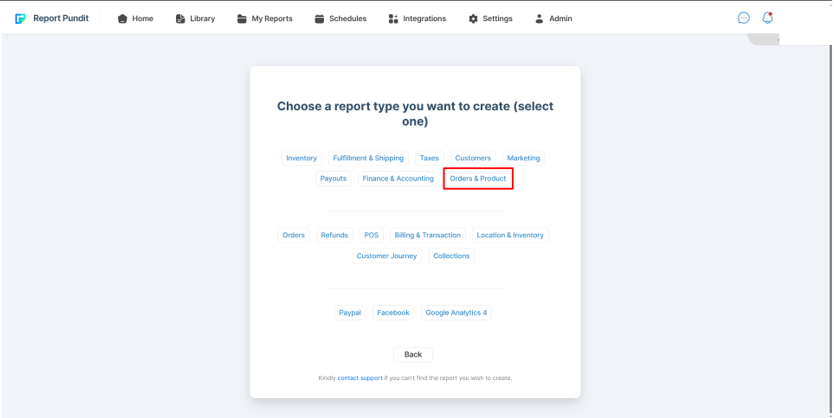
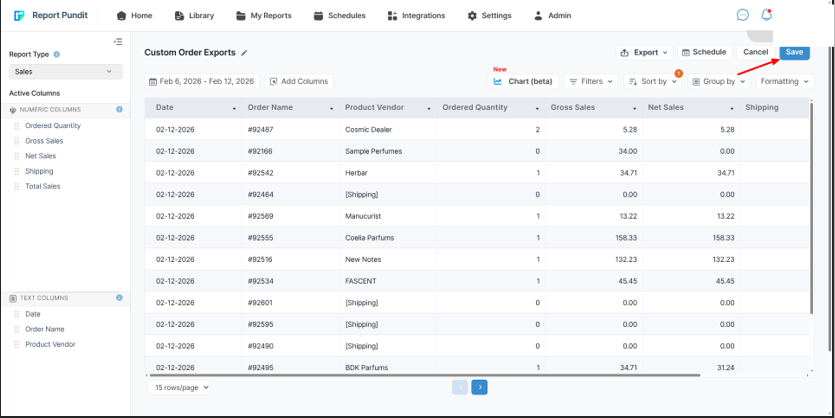
To begin, install and open Report Pundit from your Shopify admin. Create a new report and select Orders as the primary data source. From there, you can customize the report to include only the fields relevant to your warehouse team, such as order number, SKU, product name, quantity, variant details, shipping address, fulfillment status, tags, and priority notes.
For picking lists, configure the report to group line items by order number or SKU. This ensures warehouse staff can clearly see which products need to be picked and in what quantities. You can sort the data by location, SKU, or product type to optimize picking routes and reduce warehouse movement time.

How to Automate Order Exports for Vendors and Operations Teams
Manually exporting order data every day may work in the early stages, but as your store grows on Shopify, automation becomes essential. Vendors need timely updates, warehouses require real-time visibility, and operations teams depend on consistent reporting. Automating order exports ensures everyone receives accurate data without manual effort.
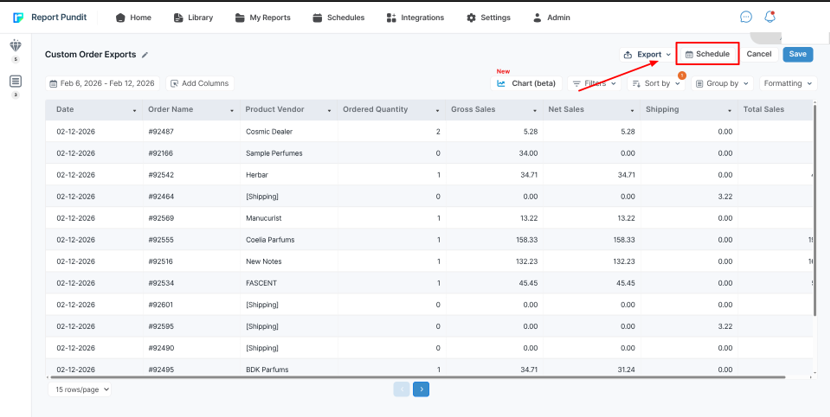
The most effective way to automate exports is by using advanced reporting apps such as Report Pundit. These tools allow you to create custom reports filtered by vendor, fulfillment status, warehouse location, tags, or date range. Once configured, you can schedule these reports to run automatically on a daily, hourly, or weekly basis. The system then delivers the files via email, secure download link, or even direct integrations, eliminating the need for manual CSV downloads.
For operations teams, automated exports provide continuous visibility into key metrics such as unfulfilled orders, priority shipments, backorders, and returns. Filters can be applied to automatically send:
- Vendor-specific order sheets
- Warehouse picking lists
- Orders tagged as “Priority.”
- Unfulfilled orders only
- Location-based fulfillment reports
Case Study
A customer wanted to enhance their vendor-level reports by including real-time inventory valuation alongside sales data. While they were already tracking total sales by vendor, they lacked visibility into how much capital was tied up in current stock and incoming inventory. Their goal was to calculate “Value on Hand” using on-hand quantity multiplied by cost per item, and “Incoming Value on Hand” using incoming quantity multiplied by cost per item, with both values aggregated at the vendor level, just like total sales.
Our team configured customized reporting for their Shopify store by adding calculated columns directly into their existing Sales by Vendor reports. We also positioned the new columns within the report layout to align with their operational workflow.
This enabled the customer to see vendor revenue alongside real-time inventory investment, make smarter reordering decisions, reduce idle stock, and better manage working capital across locations without relying on manual spreadsheet calculations.
Conclusion
Creating custom order exports for vendors, warehouses, and operations teams in Shopify is essential for growing stores. As order volume and vendor complexity increase, relying on basic CSV exports leads to manual work, formatting issues, inventory gaps, and fulfillment delays.
By using structured vendor reports, customizing warehouse exports, and automating scheduled deliveries with third-party apps, your store can improve accuracy and efficiency across teams. Simple and purpose-built exports ensure vendors receive correct data, warehouse teams process orders faster, and operations leaders make store-related decisions.
FAQs
1. How can I create custom order exports for vendors, warehouses, and operations teams?
Report Pundit allows you to build fully customized order exports by selecting required fields such as SKU, quantity, vendor, shipping details, cost, and tags. You can format the report based on each team’s workflow and automate delivery on a schedule.
2. Can I display months with zero sales in vendor reports?
Yes. Report Pundit can be configured to show all months within a selected date range, even if no sales occurred. This ensures consistent monthly performance tracking without missing periods.
3. Is it possible to calculate the inventory value by vendor?
Yes. You can create calculated columns, such as On Hand Quantity multiplied by Cost per Item, and aggregate them at the vendor level. This helps track inventory investment alongside vendor sales performance.
4. Can I automate scheduled order exports to vendors?
Yes. Reports can be scheduled to run hourly, daily, weekly, or monthly and automatically sent via email or secure links. This eliminates manual CSV downloads and keeps vendors updated.
5. Can I sort vendors by total sales while keeping product details grouped under them?
Yes. Report Pundit allows grouping by vendor and sorting by total sales while maintaining product-level breakdowns. This preserves report structure while enabling clear vendor performance ranking.

Build and automate your Shopify Reporting
Unlock the full potential of your Shopify store with Report Pundit. Gain access to over 2000 data fields, automate reports, and make data-backed decisions to grow your business.