How to Create and Use an Inventory Aging Report in Shopify

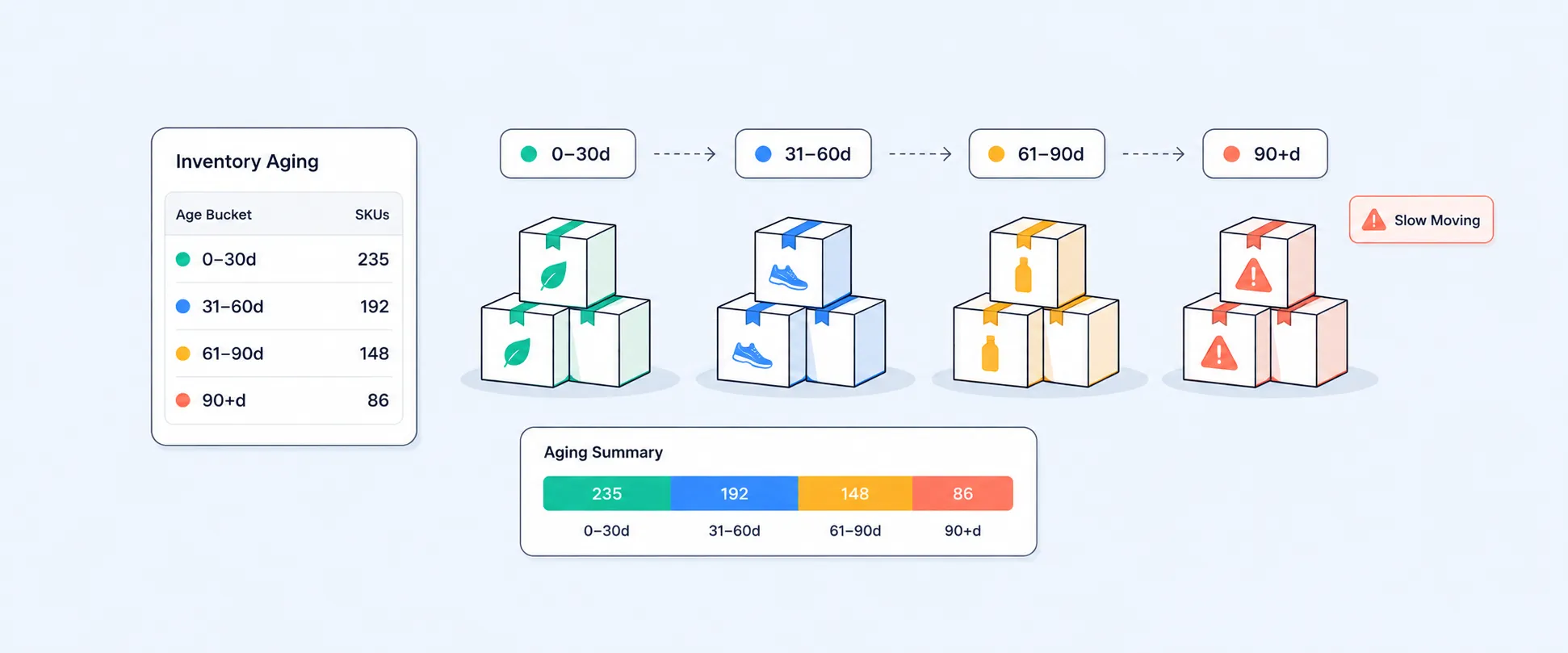
Is your inventory quietly cutting your profits? Every day, items go unsold, they lock up cash, and lose value. An inventory aging report helps you spot this early by tracking how long products stay in stock and highlighting potential deadstock before it impacts your margins.
In this guide, we’ll break down how inventory aging reports work, why they matter, and how you can use them to turn aging stock into something you can actually manage and improve.
Understanding the Impact of Inventory Aging on Shopify Store Performance
An inventory aging report is a financial report that groups inventory based on how long it has been in stock, helping you understand inventory health and how easily it can be converted into cash. It organizes your stock into age ranges such as 0 to 30 days, 31 to 60 days, 61 to 90 days, and over 90 days, making it easier to see which products are selling quickly and which are slowing down.
The main purpose of this report is to:
- Identify slow-moving inventory that ties up capital and storage space
- Highlight products that may soon become outdated or expire
- Measure obsolete stock that may need discounts or removal
Does Shopify Have a Built-in Inventory Aging Report?
Well, Nah, Shopify doesn’t offer a single-click inventory aging report. Instead, it provides standard inventory reports like Month-end Snapshot, Inventory Value, ABC Analysis, and others. These can give you useful data, but you’ll need to calculate inventory age yourself or use a third-party app for automated insights.
You can access details like product name, SKU, cost, quantity, inventory value, and sales history, but creating an inventory aging report requires additional fields like days of inventory remaining, days out of stock, last and first day in inventory, product ID, and inventory item ID. This means you either need to export the data and calculate it manually or use an app.
Using only Shopify’s default reports comes with a few gaps:
- No built-in way to track how many days of inventory have been in stock
- Limited visibility into aging across multiple locations without manual work
- No automatic grouping into age ranges like 0 to 30 or 31 to 60 days
How to Create Inventory Aging Buckets in Shopify
Method 1: Using Shopify Export with Excel or Google Sheets
To create an inventory aging view using Shopify, you’ll need to manually export data from multiple reports and combine them in a spreadsheet.
- Export inventory reports from Shopify, like the Inventory adjustment report, and use fields like
- Days in stock
- Days in inventory
- Days of inventory remaining
- Days out of stock
- Last day in inventory
- First day in inventory
- Product ID
- Inventory item ID
- Product variant title
- Open the file in Excel or Google Sheets
- Calculate how long each product has been in stock (in days)
- Group products into aging ranges like 0 to 30 days, 31 to 60 days, and so on
- Summarize the data to see the total inventory quantity and value by each age group
Method 2: Using third-party reporting apps
You can use third-party apps to manage inventory aging more efficiently, but if you are looking for a solution that goes beyond basic reporting, Report Pundit is worth it. It connects easily with Shopify and also lets you pull data from multiple stores and external platforms using APIs, giving you a single view of your inventory.
You can build advanced inventory aging reports customized to your business. It supports custom calculations, so you can structure and analyze your data exactly the way you need without relying on manual work or spreadsheets.
One of its biggest advantages is the ability to add calculated fields that automatically track days in stock and categorize products into aging buckets. This level of automation helps you monitor inventory health in real time and take action faster, making Report Pundit a strong choice for scaling and data-driven Shopify stores.
Let’s look at an example using different product variants to understand how inventory aging metrics work in practice:
The Active Shorts / Olive / S has zero days remaining, which means it is currently out of stock and needs immediate attention. The Everyday Hoodie / Beige / L lost 7 days due to being out of stock, which likely resulted in missed sales opportunities.
How to Define the Right Aging Buckets in shopify
Define your aging buckets based on your product lifecycle, industry norms, and business goals. While many businesses use ranges like 30, 60, 90, and 120+ days, it’s important to adjust these based on how your products actually sell.
For example, a fashion store may use shorter time ranges due to seasonal changes, while businesses selling perishable items may need tighter tracking to stay on top of expiration dates. When setting your buckets, consider how quickly products become outdated, how much storage space you have, how fast items have sold in the past, and how your promotions or discounts typically work.
While defining your aging buckets, the following must be considered:
- Product lifecycle: How quickly your products lose relevance or get replaced
- Storage costs and space: Limited space may require faster turnover
- Historical sales trends: Identify when items typically slow down or stop selling
- Promotions and discounts: Align buckets with your markdown or clearance strategy
How can you calculate inventory aging:
Days Inventory Outstanding = (Average Inventory Cost ÷ Cost of Goods Sold (COGS)) × 365
Smart Strategies to Improve Inventory Aging in Shopify
The following are a few best practices that can help you reduce dead stock, improve cash flow, and keep inventory moving efficiently.
Use the last sold date, not the created date
Instead of relying on when a product was created, focus on when it was last sold. This gives a more accurate picture of inventory health. A product that was added years ago but still sells regularly is not a concern, while a newly added item that has not sold for months may already be turning into dead stock.
Combine aging with other inventory metrics
Inventory aging works best when you look at it alongside other key metrics. Pair it with inventory turnover to understand how often stock sells, days of inventory on hand to see how long your current stock will last, and profit margins to know which products are actually contributing to revenue. This combined view helps you prioritize what needs attention first.
Use FIFO and LIFO Mechanisms
Use Shopify inventory reports to track product lifecycles, identify slow-moving items, and take action early with strategies like bundling or discounting.
First In First Out ensures older stock is sold first, helping reduce dead stock, especially for perishable or trend-based products. And Last In First Out focuses on selling newer stock first and may be useful in certain pricing or accounting situations.
Let’s take a product called Classic Hoodie / Grey / L. You purchased inventory in three batches at different costs and sold 90 units.
This example shows how FIFO uses older, lower-cost inventory first, leading to lower cost of goods sold. LIFO uses newer, higher-cost inventory first, which increases the cost of goods sold but leaves older stock in inventory.
Identify and act on dead stock
Set clear thresholds for what you consider dead stock, such as products that haven’t sold for 180 days or more. Once identified, take action based on how long items have been sitting. Products in the mid range can be promoted or bundled, while older stock may need to be discounted, cleared out, or removed entirely to free up space and cash.
Automate inventory monitoring
After setting up your aging buckets, automate the process as much as possible. Use tools or apps to keep your data updated, set alerts for items that are becoming slow-moving, and review reports regularly. This helps you stay proactive and ensures inventory issues are addressed before they impact your business.
Common Mistakes to Avoid While Analyzing an Aging Report
Inventory aging is only useful when the data is accurate and read in the right context. Even small mistakes can lead to poor inventory decisions.
- Relying only on the product creation date
Using only the creation date can be misleading. It is better to also consider the last sold or received date. - Ignoring inventory across multiple locations or warehouses
Looking at total inventory without location context can hide where stock is actually overstocked or running low. - Overlooking the impact of promotions or discounts
Promotions can temporarily increase sales. Without that context, product movement may be misread. - Missing stockouts or gaps in availability
A product may look slow moving simply because it was out of stock for part of the period. - Not accounting for supplier lead times or replenishment delays
Supplier delays can affect how long inventory sits. This should be considered before making reorder decisions. - Ignoring slow moving variants
A product may sell well overall, while some sizes or colors do not move at all. Variants should be reviewed separately. - Not updating aging buckets regularly
If the report is not refreshed often, the data becomes outdated and less useful for decision making.
Conclusion
One of the biggest risks with aging inventory doesn’t always show up right away. Products sit in your warehouse longer than expected, and over time, some of them may become outdated, damaged, or even expire. If these items still make their way to customers, it can quickly lead to returns, negative reviews, and a loss of trust in your brand.
This is where better visibility makes a difference. With the help of third-party reporting tools and lot tracking, you can spot at-risk inventory early and take action before it reaches your customers. Instead of reacting to problems, you stay ahead of them.
By using calculated and customized aging insights, you can make smarter decisions about what to sell, discount, or remove. Over time, this not only reduces customer complaints but also helps you protect your brand reputation and deliver a more consistent customer experience.

5.0 ( 2000+ Reviews)
