
How Shopify Date Fields Work in Reports and Why Your Numbers Often Don’t Match

.svg)
.svg)
.svg)
Shopify reports work differently depending on the report type. Sales reports use the order date, fulfillment reports use the fulfillment date, and payment reports use the payment or transaction date.
In the Sales Report section, Shopify added many new fields. Since these reports are based on the order date, all sales numbers come from orders placed within the date range you choose.
For Fulfillment Date reports, you can see which orders were fulfilled during the dates you select. But if you add sales fields like Net Sales or Total Sales, Shopify still uses the order date, not the fulfillment date. So the sales numbers won’t match the fulfilled orders, and Shopify is pulling sales from the order date range instead of the fulfillment date range.
Understanding Date Fields in Shopify Reports
Key order-related date fields include Order Created At (when the order was placed), Fulfilled At (when items were shipped or marked fulfilled), Paid At (when payment was captured), and Refunded At (when a refund was processed). Shopify stores all of these timestamps in ISO 8601/UTC, which is a consistent time standard across orders, transactions, fulfillments, and payouts, and then shows them in your store’s local timezone in the admin.
These date fields matter because different teams rely on different sources of data.
- Finance cares about Paid At and payout dates.
- Operations focuses on Fulfilled At and delivery dates.
- Support looks at created At and dispute dates.
Shopify’s built-in Analytics and Reports mostly filter by the order created date, and the default date picker usually can’t be switched to fulfillment or transaction dates. Because of this, it’s hard to answer questions like “Which orders were fulfilled last week?” or “What revenue was paid out during a specific payout period?” using Shopify’s native reports alone.
CSV exports from Orders and Payouts do include multiple date fields, but Shopify doesn’t provide a built-in way to change the main date dimension to fulfillment date, payment date, or any other custom date. As stores grow and financial reporting becomes more complex, most merchants turn to reporting apps to obtain more flexible, detailed, data-driven filters and comparisons.
Note: Using the incorrect date field is equivalent to selecting Created At instead of Paid At, which can lead to compliance, tax, and financial reconciliation issues.
Shopify Payout and Transaction Date Fields Explained
Shopify Payments, payout schedules are based on when orders are paid (captured) and then grouped into payouts with their own Processed/Issued dates. A customer’s card is charged at Paid At, but the payout to your bank follows your pay period (daily, weekly, or monthly), and the actual deposit lands after card network and banking delays.
Payment transactions move through statuses such as pending, authorized, and captured, and each status change can affect when revenue appears in balances and payout batches. Holds, chargebacks, and gateway-level reviews can extend the delay between Paid At and the payout date, so cash-flow reports must distinguish order, payment, and payout timestamps carefully.
Preparing Your Shopify Data for Custom Date Reports
Imagine working with dates in Shopify reports, especially when they need to analyze activity by something other than the default date fields. Shopify’s built-in reports offer a helpful starting point, but they do not always include every operational date a business may want to track.
From the Shopify admin, you can use Analytics → Reports for baseline insights and export CSV files of orders, transactions, and payouts with all native date fields. Once exported, spreadsheet tools or BI platforms let you sort, filter, and pivot on any date column.
For dates that Shopify does not provide by default, such as a requested delivery date or promised ship date, merchants can store them using order tags, note attributes, metafields, or line item properties. These values can then appear in CSV exports or in reporting apps that read custom fields. Store owners also use Shopify Flow or cart attributes to copy these dates into fields that can be easily exported.
How to Create Date-Based Reports Using
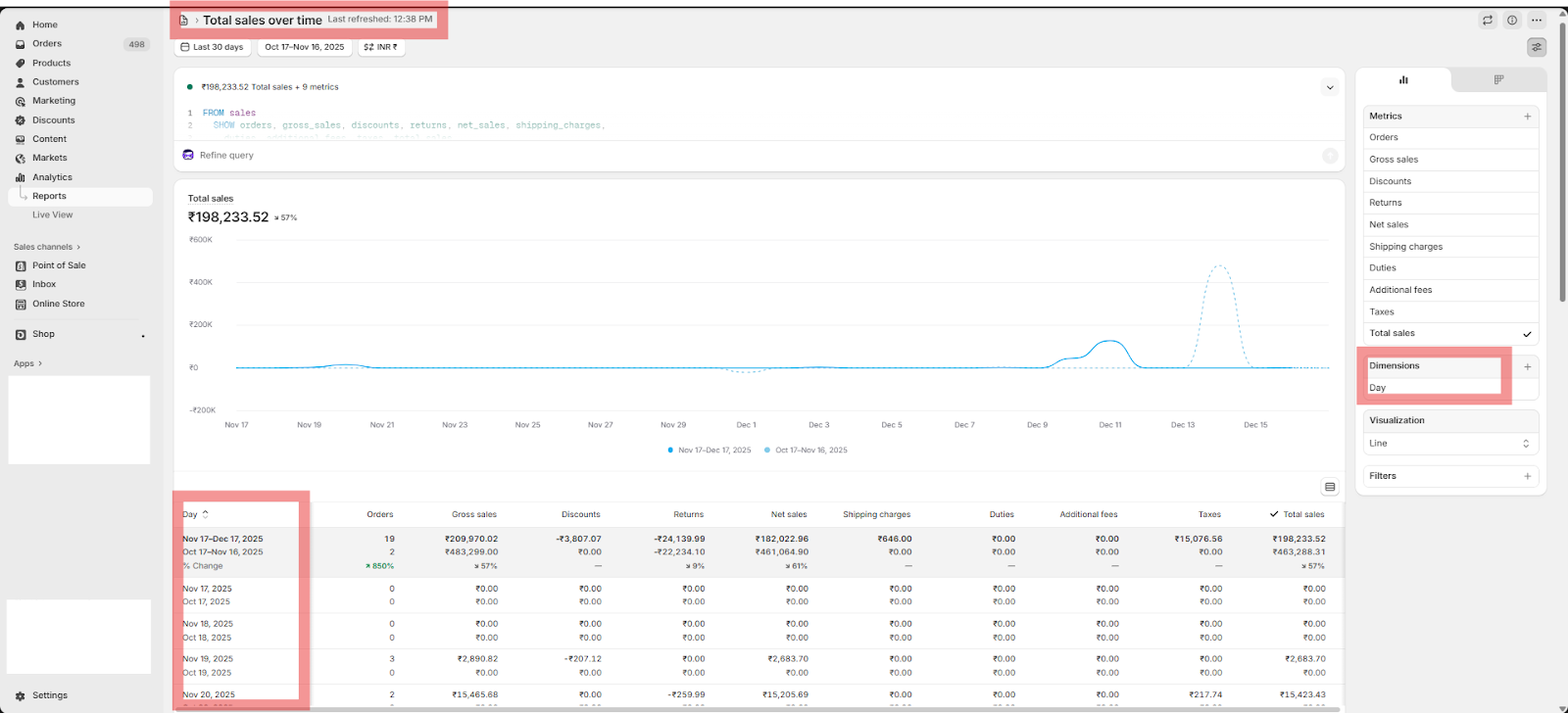
Choose a relevant standard report, such as Sales over time, Orders over time, then apply the calendar selector for your desired date range (by order date). You can group visuals by day, week, or month and add metrics like gross sales, net sales, discounts, and quantities as columns.
Below is a quick overview of the crucial Shopify report types and the date field that drives each one:
Sales Reports
• Runs on: Order Created Date (created_at) or Happened At
• Example: Total sales over time
Order Reports
• Runs on: Order Created Date (created_at) or Happened At
• Example: Orders over time
Fulfillment Reports
• Runs on: Fulfillment Date (fulfillment_created_at)
• Example: Fulfillments over time
Inventory Reports
• Runs on: Inventory adjustment or update date
• Example: Inventory adjustment changes
Customer Reports
• Runs on: Customer Created Date (created_at)
• Example: New customers over time
Profit Reports
• Runs on: Order Created Date (created_at) or Happened At
• Example: Gross profit by order
Discount Reports
• Runs on: Discount applied date (typically the order created date)
• Example: Discounts by order
Tax Reports
• Runs on: Order Created Date (created_at) or Happened At
• Example: Tax collected over time
Shipping Reports
• Runs on: Order created date
• Example: Shipping by order
Returns Reports
• Runs on: sales agreement date (Happened At)
• Example: Returns over time
Traffic Reports
• Runs on: Session date (created_at or session_start_date)
• Example: Sessions over time
Financial Reports
• Runs on: Transaction date or payment date
• Example: Net payments over time
Store Credit Transaction Reports
• Runs on: Store credit transaction date
• Example: Store credit usage over time
Payout Reports
• Runs on: Payout date
• Example: Payouts over time
How can you use Report Pundit to create custom date range reports?
Report Pundit gives access to over 2000 fields from your Shopify store's data through Shopify API (REST and GraphQL), including custom date fields like "Fulfilled At," "Created At, Processed At, Happened At, Delivered At, Payout Date, Refund Processed At, Updated At," etc. This means you can track and report on various date fields that matter most to your business.
We can also run the report based on any date stored in Shopify, as well as any date saved as a string. You can extract the specific date saved as a string and convert it to a date and modify the report to run and display the data based on these dates (Eg, dates saved as note attributes, line item properties, order tags, order notes, etc).
Advanced Filtering and Grouping by Date Fields
With Report Pundit, you can take your reporting to an advanced level with customized filtering and grouping:
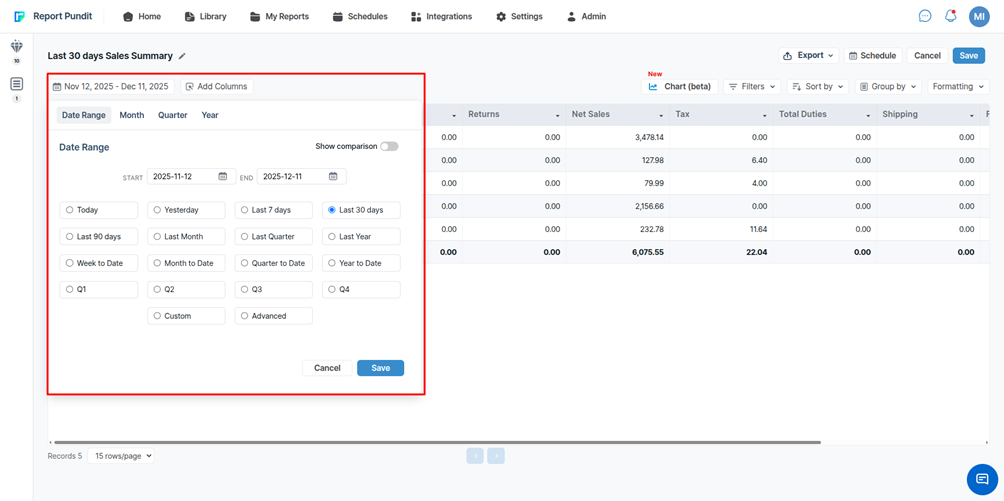
Date Selection Dropdown: Report Pundit provides a dropdown menu where you can select any date field, like "Fulfilled At" or "Created At," or even custom date fields that you’ve set up. This flexibility helps you tailor reports to exactly what you need. You can run the report based on any date range with the help of technical support.
Setting Date Ranges: Once a date field is selected, you can set specific date ranges, such as "Last 30 days," "This month," or any custom range. This helps report on different time periods (daily, weekly, monthly, etc.) without manually adjusting the date for each report.
We can talk about our product and customer report concepts and how we run those reports.
Order vs. Fulfillment Lag: You can compare the difference between when an order is placed and when it's fulfilled by using multi-date comparisons. This helps you track metrics like order processing time, delivery time, or identify potential bottlenecks in our workflow.
For example, we can display the order creation date, fulfillment date, Delivery date, the number of days taken to fulfill, and the number of days taken to deliver the product to the customer.
Additionally, Report Pundit enables you to create a report that compares the "Order Created At" date to the "Fulfilled At" date, illustrating the average time it takes.
Case Study
One of our clients needed a reliable way to track unfulfilled and draft orders based on a future Shipping or Pickup Date recorded in the order Notes within Shopify. Their goal was to proactively manage upcoming deliveries and pickups by viewing orders scheduled for future dates in a single, accurate report.
Our team created a customized report that dynamically filters orders by the selected future Shipping or Pickup Date range. Once a date range is applied, the report automatically displays all matching unfulfilled and draft orders, allowing the client to plan fulfillment activities more efficiently.
Conclusion
Shopify reporting works well when it is based on standard date fields such as order creation, fulfillment, or payment dates. However, when stores need to report on custom operational dates, like shipping or pickup dates stored in note attributes, it becomes more challenging. This makes it difficult to answer practical questions such as which orders are scheduled for pickup in a given week. In these cases, merchants often need a different reporting approach to ensure their data accurately reflects real operational timelines and supports day-to-day decision making.


Build and automate your Shopify Reporting
Unlock the full potential of your Shopify store with Report Pundit. Gain access to over 2000 data fields, automate reports, and make data-backed decisions to grow your business.