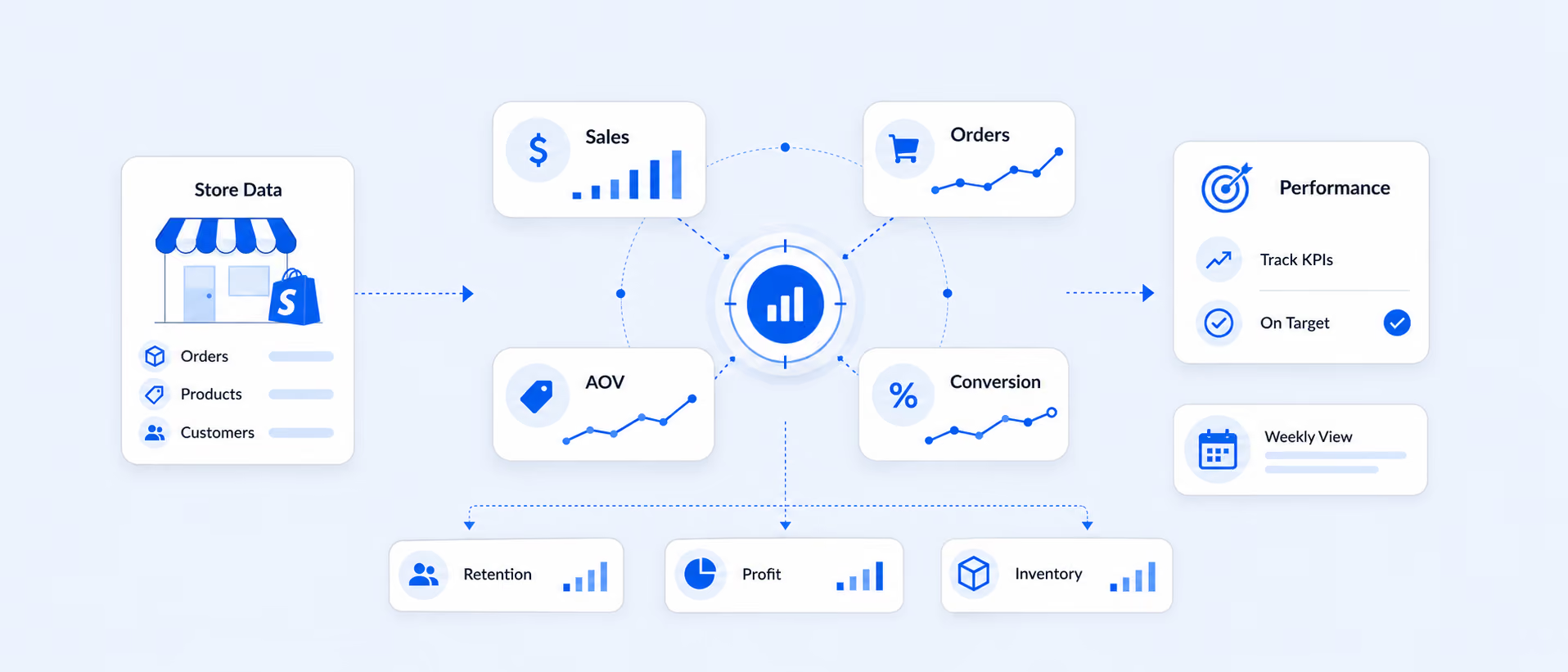
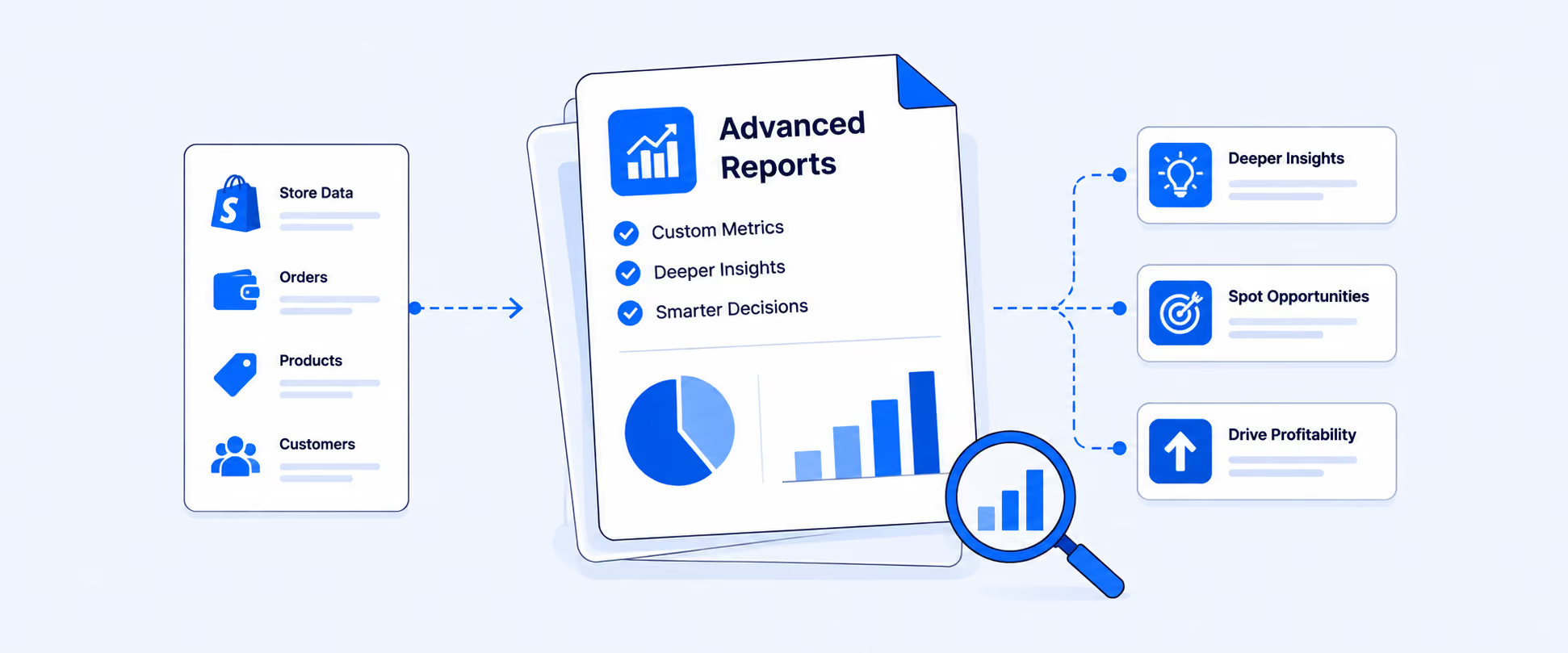
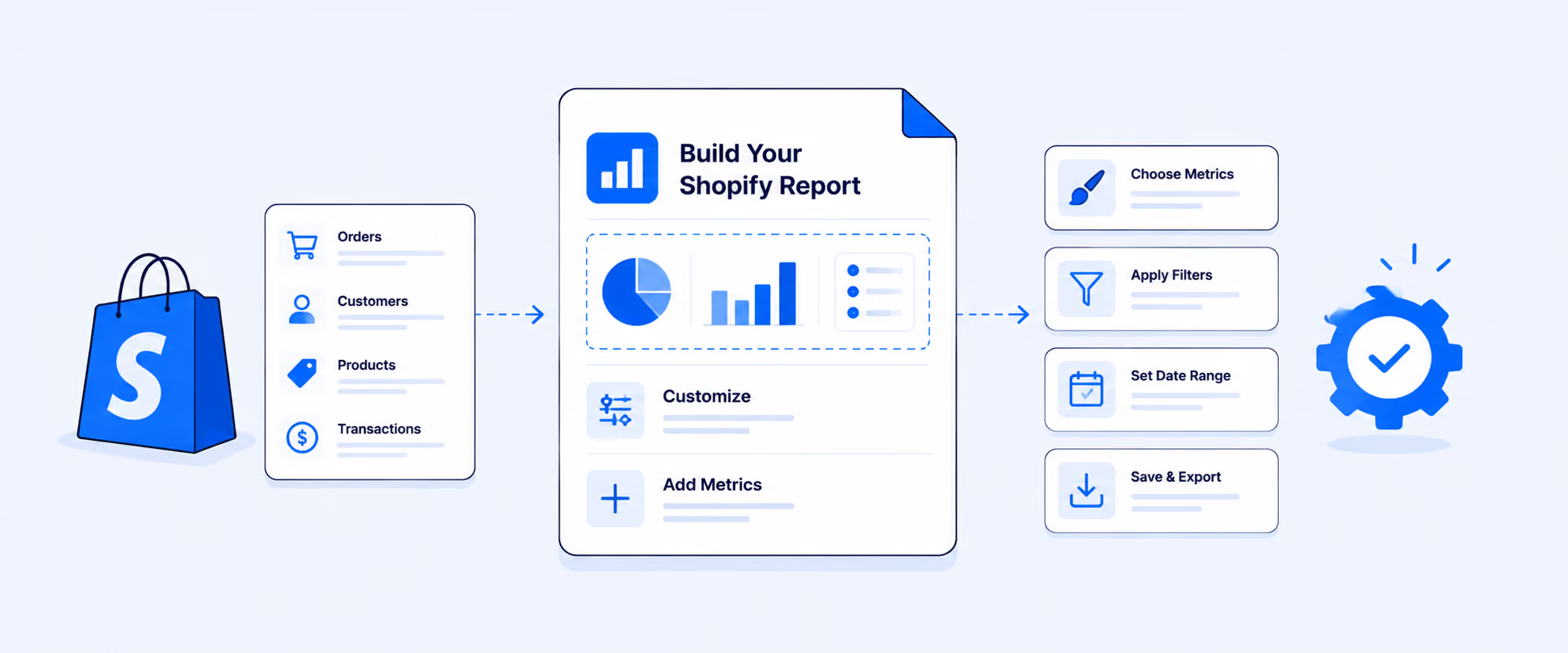
Shopify Report Automation: 5 Ways to Schedule Reports (2026)

.avif)
Shopify Report Automation: 5 Ways to Schedule Reports (2026)
Shopify’s built-in analytics let you view and export reports from the admin dashboard. But they don’t let you schedule them. There’s no option to have a sales report land in your inbox at a set time, push an inventory snapshot to Google Sheets every morning, or send a weekly summary to your accountant automatically. If you want any of that, you need to set it up yourself.
This guide covers five ways to automate Shopify reports: Native saved reports, ShopifyFlow with ShopifyQL, a dedicated reporting app, workflow tools like Zapier, and full BIpipelines. We'll cover what each one can and can't do, how to set one up step by step,and which reports are worth automating first.
Key Takeaways
* Shopify does not include built-in report scheduling or email delivery on any plan.You need a third-party app or a Shopify Flow workaround.
* There are five automation methods, from native saved reports (no true scheduling) to reporting apps (most flexible) to BI pipelines (most powerful, most work).
* Report Pundit supports multiple report scheduling destinations.Reports can be delivered to email, Google Sheets, Google Drive, Slack, FTP, Power BI, and BigQuery on an hourly, daily, weekly, or monthly schedule.
* Report Pundit also generates shareable report links.You can give stakeholders live access to a report without creating an account or waiting for a scheduled delivery.
Shopify’s built-in analytics let you view and export reports from the admin dashboard. But they don’t let you schedule them. There’s no option to have a sales report land in your inbox at a set time, push an inventory snapshot to Google Sheets every morning, or send a weekly summary to your accountant automatically. If you want any of that, you need to set it up yourself.
This guide walks through the three main ways to automate Shopify reports: using Shopify Flow’s newer ShopifyQL action, using a dedicated reporting app like Report Pundit, and using workflow tools like Zapier. We’ll cover what each method can and can’t do, how to set one up step by step, and which reports are worth automating first.
Can Shopify schedule or email reports automatically?
No. Shopify does not offer native report scheduling or automated email delivery on any plan, including Shopify Plus. You can view reports inside the admin, apply filters, and export CSV files manually. But there’s no built-in option to have a report generated and sent to you on a recurring basis.
Shopify’s own support staff have consistently pointed merchants to third-party apps for report automation, so this isn’t a gap that’s likely to close soon on the native side.
What about Shopify Flow and ShopifyQL?
Shopify did add a useful related feature in May 2026. The “Get analytics data” action in Shopify Flow now lets you run ShopifyQL queries on a schedule and use the results in workflow steps, like sending a Slack message when sales cross a threshold or tagging a product that hits a milestone.
It’s a step forward, but it’s not the same as automated report scheduling. Here’s why:
- ShopifyQL queries return raw metric values, not formatted multi-column reports.
- You can’t schedule a full sales-by-product or inventory-by-location report to land in someone’s inbox as a PDF or Excel file.
- Building useful automations requires writing ShopifyQL queries, which means developer skills or comfort with a query language.
- It doesn’t support delivery to Google Sheets, Google Drive, FTP, Power BI, or BigQuery.
For merchants who want formatted, multi-column reports delivered automatically to email, Sheets, or cloud storage, a third-party app is still the practical solution.
What are the 5 ways to automate Shopify reports?
There are five approaches, and each fits a different level of complexity, budget, and team size. Here's how they compare:
Native Shopify reports (and why they stop short of automation)
Native reports are where most merchants start, and for ad-hoc checks they're fine. You can open a report, filter it, add or remove columns, adjust the date range, and save that version to reuse later. On Shopify, Advanced, and Plus plans you can also build custom reports from scratch.
The wall you hit is delivery. Saved reports still have to be opened and exported by hand each time, and Shopify won't email them on a schedule. So native reporting solves "what does this data look like right now" but not "send this to my accountant every month without me touching it." That second job is what the other four methods handle.
Shopify Flow with ShopifyQL
Flow's scheduled ShopifyQL action is the closest native option to automation, and it works well for alerts. Think "ping the team in Slack when yesterday's sales drop below a threshold." What it won't do is deliver a formatted, multi-column report as a file, which is the thing most merchants actually mean by "automate my reports." We covered the specifics in the section above.
Third-party reporting apps
Dedicated Shopify reporting apps handle the full workflow: report building, customization, scheduling, and delivery. This is what most merchants use when they want recurring reports without technical effort. The main options in the Shopify App Store include Report Pundit, Better Reports, Data Export IO, and EZ Exporter.
Where they differ is in delivery destinations and date-logic flexibility. Some apps only schedule to email. Others, like Report Pundit, support email, Google Sheets, Google Drive, Slack, FTP, Power BI, and BigQuery, with scheduling down to hourly frequency and advanced date logic like "last completed month" or "quarter to date." If you only need a basic CSV emailed weekly, most of these apps work. If you need a report covering last month's complete data to land in a specific Google Sheet tab on the 1st of each month, that's where the differences matter.
Workflow tools (Zapier, Make, n8n)
Workflow tools connect Shopify events (new order, refund, fulfillment) to external actions. Zapier can push order data into a Google Sheet row by row, or trigger an email summary at a set time. The tricky part is that these tools work with raw event data, not pre-built reports. You're assembling the report structure yourself in the destination tool.
This approach works well for simple automations ("add every new order to a Sheet") but gets unwieldy for anything involving filters, calculated columns, or multi-dimensional grouping.
BI dashboards and data warehouses
Once a brand pulls data from Shopify plus ad platforms, email tools, and a warehouse, static reports give way to BI dashboards. An ELT pipeline loads Shopify data into BigQuery, Snowflake, or Redshift, and a tool like Power BI, Looker, or Tableau visualizes it alongside everything else. Reporting apps like Report Pundit can feed this setup directly by scheduling data into Power BI or BigQuery.
This is the most powerful route and the most demanding. It needs a data source strategy, someone comfortable with a warehouse, and budget to match. For most single-store merchants it's overkill, but for multi-channel brands it's often the only way to get one trustworthy number across systems.
How to set up automated reports in Report Pundit
Setting up a scheduled report takes about five minutes. Here's the actual process, step by step.
Step 1: Pick or build your report
Open Report Pundit and either choose a report from the prebuilt library (150+ templates covering sales, inventory, fulfillment, customers, tax, and payouts) or create a custom report by selecting the fields you need.
For example, if you want an automated daily sales report, you could start with the prebuilt “Sales by Product” template and adjust the columns, filters, and date range to match your needs.
Step 2: Open the schedule settings
Once your report looks right, click the schedule option inside the report. This is where you configure the automation.
Step 3: Choose frequency and date logic

Select how often the report should run:
- Hourly for time-sensitive metrics like order volume during a sale
- Daily for sales summaries, fulfillment updates, or inventory snapshots
- Weekly for performance reviews or team-level reports
- Monthly for financial summaries, tax reports, or vendor reconciliation
Then select the date logic. This is where Report Pundit goes further than most tools. You can choose from preset ranges (yesterday, last 7 days, last month) or use advanced options like “last completed month,” “month to date,” “quarter to date,” or a fully custom window. That means a report scheduled for the 1st of every month can automatically cover the previous month’s complete data, with no manual date adjustment needed.
Step 4: Select where to deliver the report

Choose one or more destinations:
- Email with PDF, Excel, or CSV attached
- Google Sheets (choose a specific sheet and tab, append new data or overwrite, and your existing formulas stay intact)
- Google Drive (save files to a specific folder)
- Slack (send to a channel or direct message)
- FTP/SFTP (push files to a server for warehousing or accounting systems)
- Power BI or BigQuery (for BI teams running dashboards)
Step 5: Add recipients and save
Add the email addresses or select the connected export accounts, then save the schedule. The report runs automatically from that point on.
One thing we’ve learned from working with merchants: it’s worth testing the first scheduled run before sharing it with your team. Run it once manually, check that the date range, columns, and formatting look correct, and then let the automation take over.
Which Shopify reports should you automate first?
Don’t try to automate everything at once. Start with the reports that someone on your team already checks manually every day or week. Those are the ones where automation saves the most time immediately.
Here are the most common starting points, based on what Report Pundit merchants typically schedule first:
Consolidating multiple stores into one report
If you run multiple Shopify stores, you can consolidate data across all of them into a single report. Set it to run weekly and you’ll have visibility across every store’s sales, inventory, and fulfillment in one place, without logging into each admin separately.
Where can automated Shopify reports be delivered?
The delivery destination matters as much as the report itself. Different teams work in different tools, and the report needs to land where people actually look.
Report Pundit supports these destinations:
Email is the most common starting point. Reports arrive as attachments (PDF, Excel, or CSV) on whatever schedule you set. If you need reports sent from your own domain rather than a generic address, you can configure a custom sender domain in the integration settings.
Google Sheets is where things get interesting. You don’t just dump data into a sheet. You choose which sheet and which tab the data goes into. You decide whether new data appends below existing rows or overwrites the previous run. And because the sheet layout stays consistent, any formulas, charts, or pivot tables you’ve built on top of the data stay intact between runs.
Google Drive works for teams that want report files saved to a shared folder automatically. Useful for archiving or for external partners who access a Drive folder.
Slack is good for daily or real-time updates that need visibility without opening an email. Sales summaries, low-stock alerts, and fulfillment updates work well as Slack messages. We’ve written a separate guide on sending Shopify reports to Slack if you want the detailed setup.
FTP/SFTP is typically used by wholesale merchants, 3PLs, or accounting systems that ingest files from a server path.
Power BI and BigQuery support BI teams that build dashboards and run cross-platform analysis. Report data flows into these tools on schedule, keeping dashboards current without manual data loads.
What if someone needs to check a report on demand instead of waiting for a schedule?
Not every report needs a recurring schedule. Sometimes a manager, client, or vendor just needs to pull up the latest data whenever they want, without logging into Report Pundit or waiting for a scheduled delivery. For those cases, you can generate a sharable report link that gives anyone browser-based access to a live report. You can protect it with a password, control whether the viewer can filter or sort the data, and turn the link off at any time. It’s useful for giving your accountant access to a tax report, sharing inventory data with a fulfillment partner, or letting a client review performance without setting up a separate account.
Real example: Automating event attendee reports
A co-working and networking company runs regular events through their Shopify store, with each event listed as a separate product. Before automating, their team manually exported customer data using Shopify’s customer segments before every event, pulling first name, last name, and email for each attendee. This took time, introduced errors, and often happened last-minute.
Using Report Pundit, they created a custom report filtered by product (one per event), pulling the attendee fields they needed. They scheduled it to run weekly and deliver directly to the security team's email, replacing a manual export that used to happen before every single event.
The result: No more manual exports before each event, no more scrambling for attendee lists, and a system that scales as they add more events to the calendar.

FAQs
Can you schedule Shopify reports without installing an app?
Not for formatted reports delivered to email or Sheets. Shopify Flow (available on all plans) now supports ShopifyQL queries on a schedule, but it’s limited to sending raw metric values to Slack or email notifications. For recurring formatted reports with custom columns and filters, you need a reporting app.
What file formats can automated Shopify reports be delivered in?
With Report Pundit, scheduled reports can be delivered as PDF, Excel (XLSX), or CSV attachments. Google Sheets deliveries maintain the spreadsheet format natively. The format choice depends on who receives the report: PDF for stakeholders who just need to read it, Excel for teams that need to manipulate the data, CSV for systems that ingest flat files.
How often can you schedule a Shopify report?
Report Pundit supports hourly, daily, weekly, and monthly schedules. You can also use advanced date logic like “last completed month” or “quarter to date” so the report window adjusts automatically, no manual date changes required between runs.
Does report automation work across multiple Shopify stores?
Yes. Report Pundit’s multi-shop reporting lets you pull data from multiple connected stores into a single report. You can schedule a consolidated report that covers all stores, which is useful for brands running region-specific or wholesale-specific storefronts.
Is there a limit to how many reports you can automate?
There’s no hard limit on the number of schedules in Report Pundit. Most merchants start with 3 to 5 automated reports and add more as they identify recurring manual work across their team.

5.0 ( 2000+ Reviews)