How to Export Shopify Data to Google Sheets (Manual & Automated)

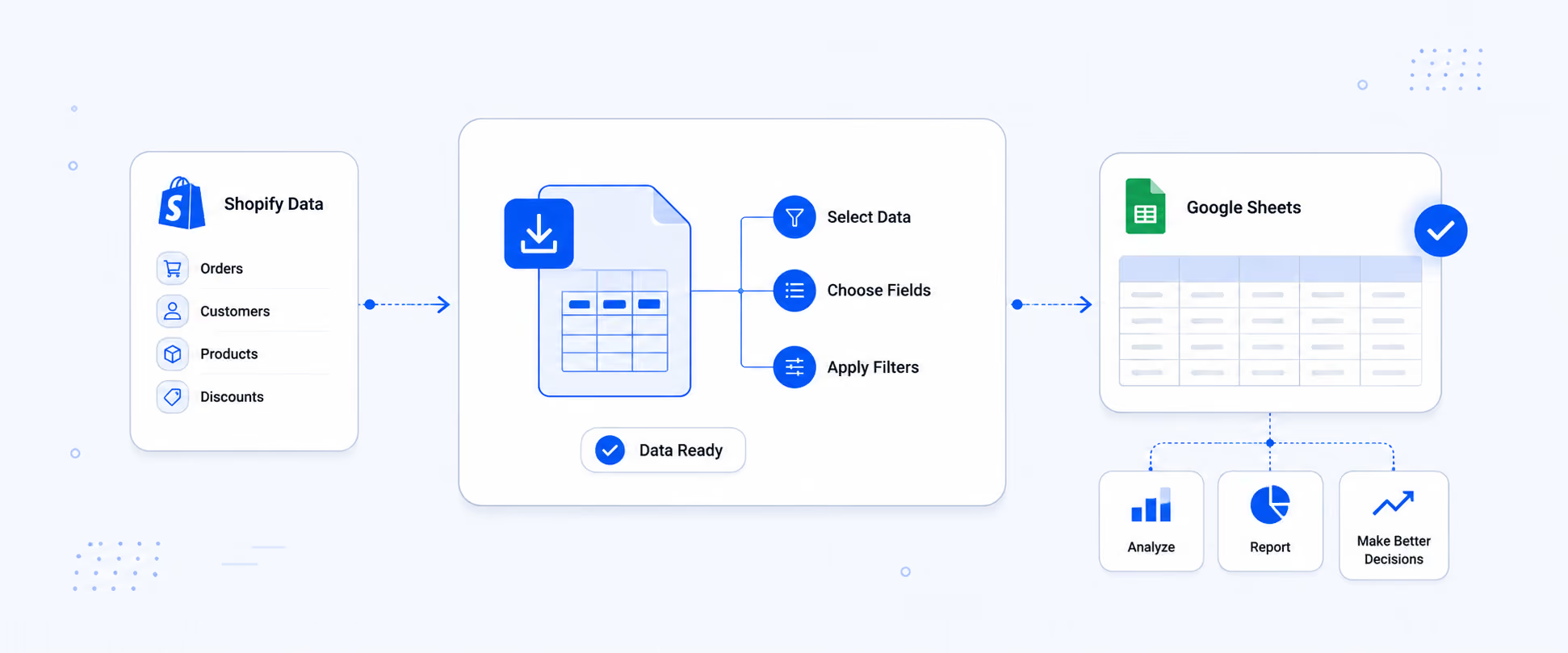
You can get Shopify data into Google Sheets two ways. Manual: export a CSV from Shopify admin, then import it into a Sheet using File > Import. Takes 5 to 10 minutes and works for one-off pulls. Automated: Use a reporting app that syncs Shopify data into a Sheet on a schedule (daily, weekly, monthly) with no manual steps. Below is how to do both, when each fits, and what usually goes wrong.
This piece focuses on getting Shopify data into Google Sheets specifically. If you're still deciding which Shopify data to export in the first place, our overview of Shopify's native export options walks through products, orders, customers, and inventory.
Key Takeaways
• Two methods: manual CSV import (5 to 10 minutes,one-off) or automated app sync (set once, runs forever).
• Google Sheets has a 10 million cell limit per file.Large Shopify order histories can hit this. Split by year or use a tool thatpartitions automatically.
• CSV imports don't auto-update. Every refresh meansre-exporting from Shopify and re-importing to Sheets.
• Automated sync options handle append vs overwritedifferently. Pick append for a historical record, overwrite for the latestsnapshot only.
• Sheets is the layer teams usually connect Power BI,Looker Studio, or their finance tools to, not Shopify directly.
What's the fastest way to get Shopify data into Google Sheets?
For a one-time pull, the fastestpath is: export a CSV from Shopify admin (Products, Orders, Customers, orInventory > Export), then open a new Google Sheet and use File > Import> Upload > pick the CSV > Import data. Total time is under 10 minutesfor most stores. Works for any Shopify data type, needs no apps.
How do I manually import a Shopify CSV into Google Sheets?
Manual import is the rightchoice for one-off reports, backups, or ad-hoc analysis. Uses only GoogleSheets and Shopify admin, no third-party tools.
1. In Shopify admin, go to the section you want (Products,Orders, Customers, or Products > Inventory).
2. Apply any filters (date range, tag, status, etc.).
3. Click Export. Choose scope and pick "CSV forExcel, Numbers, or other spreadsheet programs."
4. Small files download in your browser. Large files getemailed to the store owner.
5. Open Google Sheets. Create a new Sheet, or open anexisting one.
6. Go to File > Import.
7. Choose the Upload tab. Drag the CSV in, or click Browseand pick it.
8. Import location: pick "Replace currentsheet," "Append to current sheet," or "Insert newsheet(s)" depending on your setup.
9. Separator: leave as Detect automatically. Convert textto numbers/dates: keep on unless you want SKUs preserved as text (turn off ifany SKU starts with 0 or contains a dash).
10. Click Import data.
You now have Shopify data inSheets. It doesn't auto-update. Next time you need fresh numbers, repeat theexport and re-import.
When manual import runs into limits
Four things trip up manualimports:
• Google Sheets caps files at 10 million cells. Largeorders exports (thousands of orders x dozens of columns) can hit this.
• SKU columns starting with 0 (like "01234")lose the leading zero if you leave "Convert text to numbers/dates"on.
• Long product descriptions with commas or line breakscan misalign rows. Use "CSV for Excel" format (not Plain CSV) toreduce this.
• No automation. Refreshing the data every week meansrepeating the whole process.
How do I automate Shopify data sync to Google Sheets?
For recurring reports, use a reporting app that connects Shopify to Google Sheets directly. Configure thereport once, pick a schedule (daily, weekly, monthly), and the app pushes freshdata into your Sheet automatically. No manual export, no manual import. This iswhat most finance and ops teams eventually move to once weekly reportingbecomes a routine. For a specific example, see how to automate your Shopify daily sales report and deliver it on schedule.
Append vs overwrite: which one should you pick?
Every automated sync tool askswhether new data should append (add fresh rows below existing ones) oroverwrite (replace the whole sheet with the latest snapshot). The choicedepends on what you're building.
• Append: Use for historical records where every run is anew row (daily sales snapshots, weekly customer counts, month-over-monthinventory positions).
• Overwrite: Use for current-state reports where only thelatest matters (today's open orders, current inventory, current top 100customers by LTV).
Getting this wrong is the singlemost common Google Sheets sync mistake we see. Merchants pick overwrite forwhat should be append, then lose historical data. Or they pick append for acurrent-state report and end up with a bloated sheet.
What Shopify data can I sync to Google Sheets?
Effectively all of it. Native CSV export covers products, orders, customers, and inventory. Reporting appstypically go further and can pull marketing, financial, fulfillment, andmulti-store data into Sheets, including fields Shopify doesn't expose in thenative export flow.
Common report types teams syncto Sheets:
• Orders and sales reports (revenue by day, by channel,by product)
• Customer and retention reports (LTV, repeat purchaserate, segments)
• Inventory and stock reports (levels by location, lowstock, dead stock)
• Marketing and attribution reports (revenue by campaign,first-touch source)
• Financial and payout reports (net payments, refunds,fees)
• Custom calculated metrics (profit after COGS, ROAS,margin by product)
Why do finance teams want Shopify data in Sheets specifically?
Google Sheets works as aflexible middle layer between Shopify and everything else a finance team uses.Once data is in a Sheet, you can add calculated columns (profit, margin, ROAS),pull in cost data from other sources (ad platforms, COGS from a suppliersheet), share access with an accountant without giving them Shopify admin, andconnect the Sheet to Power BI, Looker Studio, or an internal dashboard as asingle source of truth.
Add cost fields Shopify doesn't track
Shopify captures revenue welland gross margin okay (if you've populated Cost per item). It doesn't track adspend, staff costs, shipping labels bought outside Shopify Shipping, warehousecosts, or return handling. All of that has to come from other systems and landin the same reporting layer, which is what Sheets does well.
Share with accountants without giving admin access
A synced Google Sheet is saferto share externally than direct Shopify admin access. Sheets access can beview-only, revoked instantly, and scoped to specific tabs. Most accountingworkflows we see rely on this pattern rather than granting the accountant aShopify staff account.
How do I combine multi-store Shopify data in one Google Sheet?
If you run multiple Shopifystores (regional storefronts, wholesale vs retail, agency-managed brands), areporting app can pull data from each store into the same Google Sheet, taggedby store name. This lets you compare store performance, track combined revenue,monitor consolidated inventory, and roll up multi-store financials withoutmanually merging CSVs from each admin.
The alternative (manual)approach: export CSVs from each store, import each to its own tab in a Sheet,then use IMPORTRANGE or a summary formula on a rollup tab. Works, but everyrefresh means repeating the export from every store.
How do I connect Google Sheets to Power BI or Looker Studio?
Both Power BI and Looker Studiohave native Google Sheets connectors. In Looker Studio: Add Data > GoogleSheets > pick the file and tab. In Power BI Desktop: Get Data > Web >paste the Sheet's CSV export URL, or use the Google Sheets connector directly.Once connected, your BI tool refreshes from the Sheet on its own schedule, andthe Sheet stays synced to Shopify via your reporting app.
This is why teams use Sheets asthe middle layer: Shopify to Sheet to BI tool, instead of trying to connect BItools directly to Shopify (which usually needs custom API work).
Why does my Shopify to Google Sheets sync look wrong?
Five common causes: Append/overwrite misconfigured, time zone mismatch between Shopify and Sheets,multi-currency total confusion, filtered exports at different dates, and Sheetcell limit hit. Each has a specific fix. Below covers what to check first whenthe numbers in Sheets don't match what you see in Shopify admin.
Numbers don't match Shopify admin
Usually a time zone or filterissue. Shopify stores order timestamps in UTC by default; your admin shows themin the store's configured time zone. If your Sheet is pulling by date range andthe sync uses UTC, orders near midnight can land on a different date than theadmin shows. Check the sync's time zone setting first.
Historical data disappeared after a sync
Almost always theappend/overwrite setting. Overwrite replaces the whole sheet with the latestsnapshot every run, so anything older than the current date range in the reportconfig disappears. Switch to append if you're maintaining a historical record.
Multi-currency totals look inconsistent
Order totals can be in thecustomer's checkout currency or your store's presentment currency, depending onhow the export or sync is configured. If your Sheet mixes both, sums will lookwrong. Pick one currency basis in the sync config and stick with it.
The Sheet has stopped loading or updating
Google Sheets caps at 10 millioncells per file. Large orders histories can hit this. Split by year (one tab peryear) or use a reporting tool that partitions large datasets automatically.
Real merchant example: Fixing inaccurate Shopify to Sheets exports
One merchant we worked withwanted Shopify sales and inventory in Google Sheets so their team could analyzetrends over time and share live reports internally. Their manual CSV re-exportswere often outdated or inconsistent by the time they hit the Sheet, becauseeach export overwrote previous data instead of appending, which createdconfusion about which sales belonged to which period.
The team had been manuallycross-checking Shopify reports every week to verify accuracy. After switchingto an automated sync configured for append behavior (rather than overwrite)with proper time-range controls, sales, inventory, and SKU-level data updatedcontinuously without overwriting historical records. Result: dependabledashboards, less manual verification, faster decisions.
When is manual CSV import to Sheets actually enough?
Not every store needs automatedsync. If you refresh reports once a month, work with one data type at a time,don't need multi-store consolidation, and don't connect Sheets to a BI tool,manual export and import handles it. The switch to automation makes sense whenthe same manual routine happens weekly, when errors from the manual step havecaused real problems, or when someone else on the team asks you to send thesame file more than twice.
FAQ's
Can I connect Shopify to Google Sheets natively?
No. Shopify has no built-inGoogle Sheets integration. Native workflow is: export a CSV from Shopify, thenimport it into a Sheet manually. For automated sync, you need a third-partyreporting app that pushes Shopify data into a Sheet on a schedule.
Is there a free way to export Shopify data to Google Sheets?
Yes, manual CSV export andimport is free. Shopify's admin export costs nothing, and Google Sheets' File> Import handles CSV natively. The trade-off is that it's manual: everyrefresh means repeating the whole workflow. Automated sync tools usually cost$10 to $50 per month depending on volume.
How often can automated Shopify to Sheets sync run?
Most reporting apps supportdaily, weekly, and monthly cadences. A few support hourly, but Google Sheetsisn't built for near-real-time updates (you'll hit API quotas and cell limitsfast). For anything more frequent than hourly, connect a BI tool directly toShopify instead of routing through Sheets.
Can I export Shopify data to Google Sheets from multiple stores?
Yes, with a reporting app thatsupports multi-store. Data from each store lands in the same Sheet, tagged bystore name, and refreshes on the shared schedule. Manually you'd export fromeach store separately and combine with IMPORTRANGE or a rollup tab, which worksbut takes maintenance.
Why do my SKUs show as numbers or lose leading zeros in Sheets?
Google Sheets auto-convertscolumns to numbers on import. SKUs like "01234" become"1234" and SKUs like "0.5" get read as decimals. Fix: onthe Import dialog, turn off "Convert text to numbers, dates, and formulas."For automated sync, format the SKU column as Plain text before the first sync.
Can I schedule the CSV import from Shopify to run automatically?
Not with Shopify's native exportalone (Shopify has no export scheduler). You'd need either a reporting app thatpushes data to Sheets directly, or a workflow tool (Zapier, Make) triggered bya Shopify webhook that writes to the Sheet via the Sheets API. The reportingapp route is simpler.
Does exporting Shopify data to Sheets slow the store down?
No. Both native export andreporting-app sync happen against Shopify's admin API, which is separate fromstorefront traffic. Customers browsing your store don't see any performanceimpact regardless of how often you sync.

5.0 ( 2000+ Reviews)
